

Slack has changed the way organizations working remotely operate today. With the number of features and integrations it provides, it has become the go-to app for corporate communication. So, it isn't surprising that an organization would also choose to conduct its daily standup in Slack. But how do we run one? Are there different ways to run a standup meeting in Slack? Which is the best way? Let's check it out.
1. Slack Huddle
A Huddle is a Slack feature that enables users to initiate audio or video calls within the platform. It functions similarly to a virtual online meeting, with the exception that it is conducted within the application(Slack). In Slack, it is possible to communicate with team members individually or in channels and huddle is accessible in both of these situations.
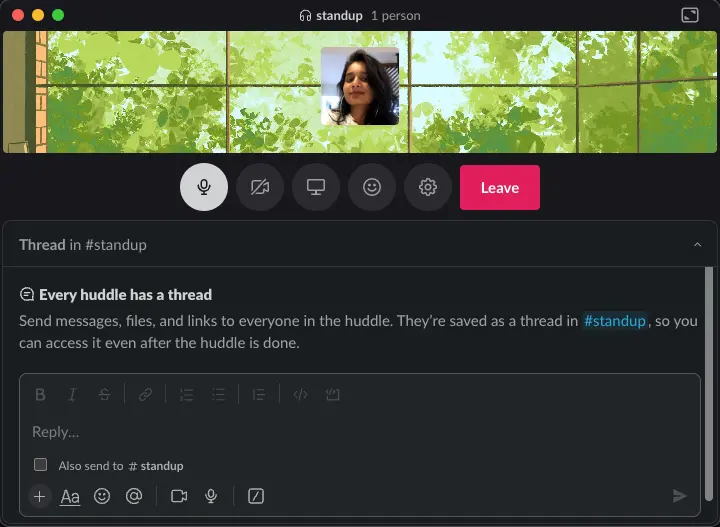
How to run daily stand-up via Slack Huddle?
- Create a Slack channel containing the individuals who are expected to participate in the stand-up meeting.
- Plan a specific time for the meeting to commence and everyone in the channel should be aware of it. Additionally, it should also be executed daily at the same time.
- As soon as the designated time arrives, the person in charge should invite the team to join the huddle, as the notification to join a huddle comes only when someone invites the member to a huddle. And the team shall wait for all participants to enter the meeting huddle.
- Team members can initiate progress updates once all members have gathered. And are welcome to leave when everyone is done or when the person in charge tells them to.
Disadvantages of Slack Huddle for running daily stand-ups
- Given that there are no prior notifications, there is a possibility that the members will forget to participate in the huddle-based daily stand-ups.
- There must be someone who will extend huddle invitations to the members to join a stand-up. And the absence of that individual can lead to disruptions in the process.
- There is no record of what the team member said about their progress during the call on that day.
- The time zone challenge faced by geographically dispersed individuals can not be addressed.
2. Slack Workflow Builder
The Slack workflow builder is a feature of Slack that gives users the ability to automate routine tasks which can be a single step or multi-step processes. It can be utilized for a variety of purposes, like having it respond to an emoji, sending messages on a predetermined schedule, start it from webhooks, and so on. Creating a workflow is a simple process, as it is an inbuilt feature of Slack and requires no coding.
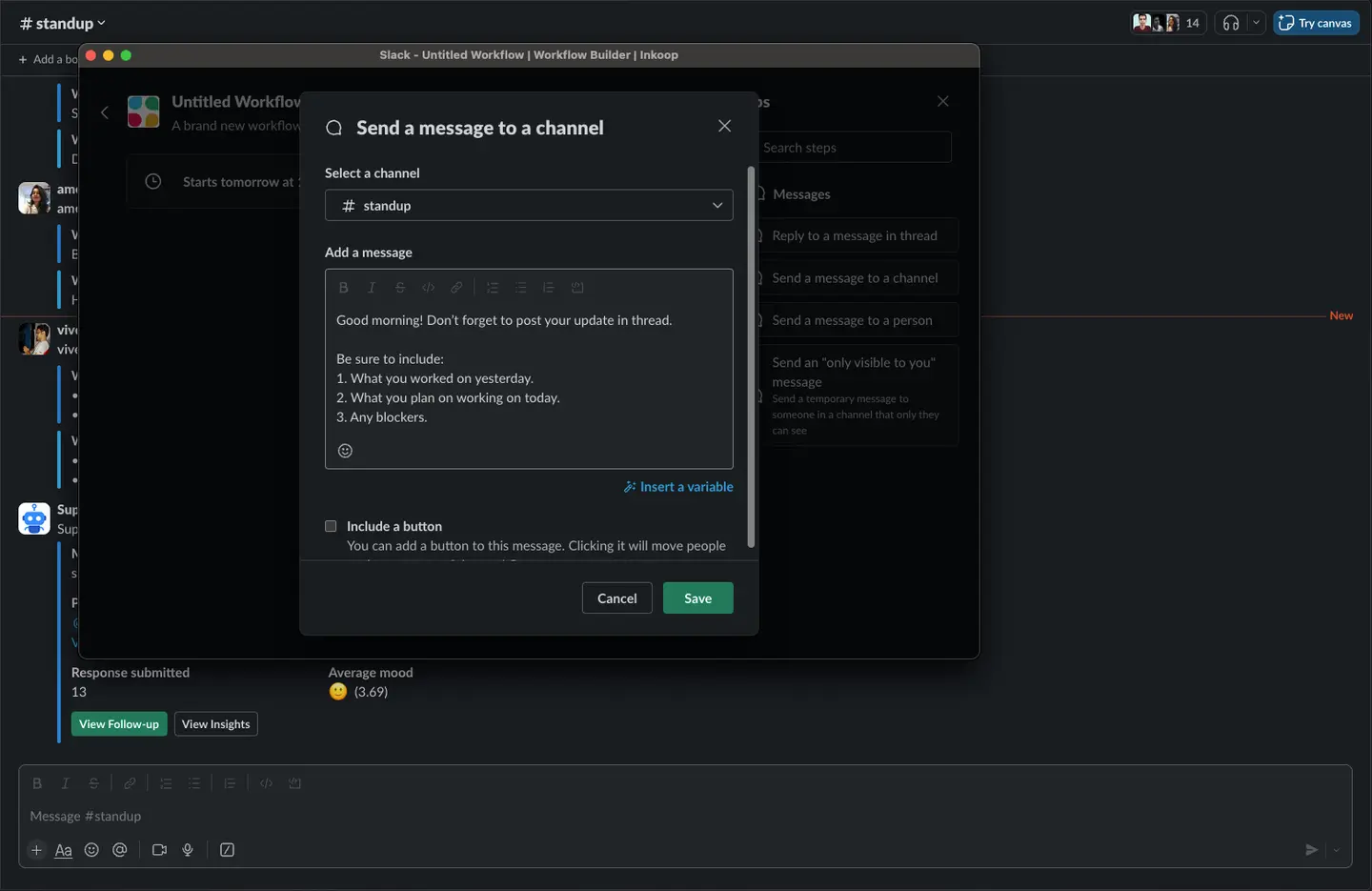
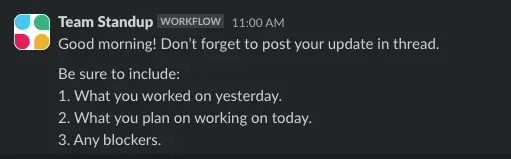
How to run daily stand-up via Slack Workflow Builder?
- The first step is to create a Slack channel with individuals who will be a part of the stand-up meeting.
- To create a workflow, head over to the top left corner in Slack and click on the name of your workspace. Choose "Workflow Builder" from the Tools & Settings option.
- To create a text-based stand-up, opt for the "Start from scratch" option and select "On a schedule." You can choose the daily standup time, respectively, and set the frequency to every weekday (Monday to Friday).
- Selecting the action is the next step, and you can do so by selecting Messages > Send a message to channel from the menu.
- Now, pick the channel you just made under "Select a channel" and add a standup message that you want to send to the members at the time of daily stand-up time. This acts as a reminder for people to send a text message about the progress of the channel.
Disadvantages of Slack Workflow Builder for running daily stand-Ups
- It acts as a one-time reminder, and team members can completely forget to answer the stand-up if they put it away to respond later. There are no further periodic or custom reminders for individuals who fail to respond, except for manual messaging.
- The difficulties associated with the different time zones are not yet resolved if this is used.
- It is available only in the Slack paid plans and the pricing gets complicated when custom functions are used.
- A stand-up cannot be customized in any way, with the exception of the text message that participants receive at the set time. Customizations like answer types, pre- and post-submission messages, response summaries, etc.
- There are no advanced filters because participants respond to their status updates via a slack message in the channel. And if someone wants to check the response of a specific person on a specific date, they must scroll to that point.
3. Slack stand-up bots
Slack stand-up bots are third-party integrations of Slack that can facilitate text-based stand-up meetings, but with a lot of customizations, scheduling, and reporting options. These bots are not only limited to stand-up meetings but can also be used in various routine update meetings like retro meetings, where to order the lunch treat from, etc.
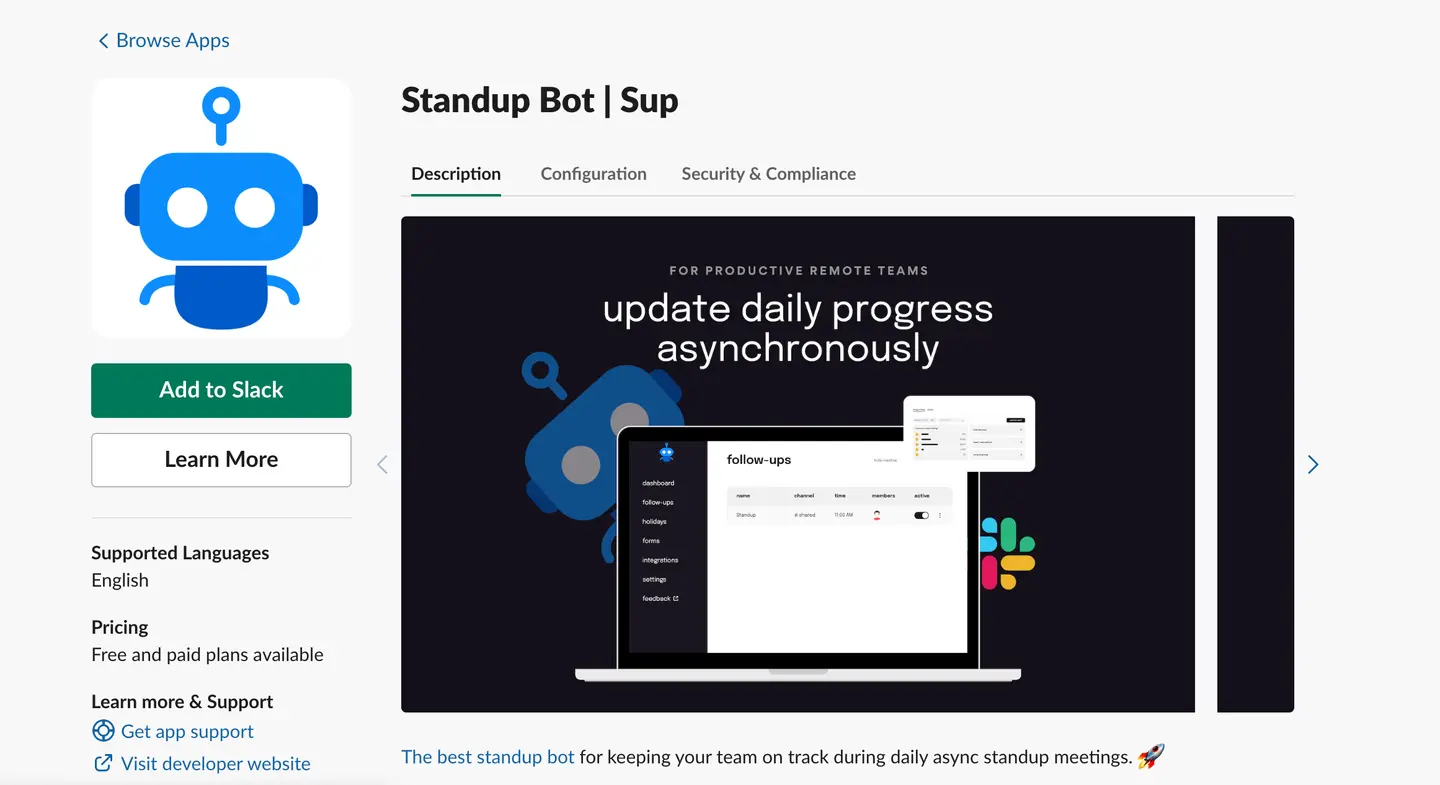
How to run daily stand-up via Sup Stand-up bot?
- Visit Slack app directory and install Sup stand-up bot to your Slack workspace.
- After successful installation, visit the follow-ups page within the Sup bot and choose the Standup template from the available set.
- Opt for the desired interaction type with the Sup bot, such as Conversational or Dialog Window.
- On the first screen, configure settings related to scheduling, including setting the preferred time for stand-ups, specifying the days of the week for stand-ups, choosing between follow-up level timezone or user-based timezone, setting preferences for daily summaries, and specifying when responses should be sent, either all at once or individually.
- Navigate to the next screen to choose the Slack channel for posting stand-up responses, select members who should receive stand-up notifications, and define permissions for viewing and editing daily stand-up follow-ups.
- Proceed to the following screen where you can customize the stand-up questions to align with your team's needs.
- On the subsequent screen, customize the text messages to be sent both before and after stand-up responses. And with that daily stand-up check-in has been created.
- Team members can now add responses via Slack app or choose to add details via the web app of Sup Bot.
 Add to Slack
 Add to Teams
 Add to Webex
Here is a detailed video explaining how to run a daily stand-up in Slack via Sup
Important features of Sup Standup Bot are:
- Access Control: Manage who can view, edit, and create stand-ups, ensuring privacy and control.
- Detailed Analytics: Gain insights into team responses with comprehensive analytics, providing a deeper understanding of team dynamics.
- Custom Reminders: Keep everyone on track by sending periodic and customizable reminders to ensure timely stand-up completion.
- Report Generation: Easily download stand-up responses with advanced filters, facilitating convenient analysis and reporting.
- Timezone Flexibility: Run stand-ups based on user timezones, making it adaptable for teams spread across different regions.
- Anonymous Mood Tracking Reports: Schedule anonymous mood tracking reports to understand and address collective sentiments within the team.
- Pause Stand-up notifications: Intelligently pause stand-up notifications during individual or team holidays, promoting a healthy work-life balance.
Purpose of a daily stand-up
There has been and continues to be so much chatter around daily standups. You are sure to have attended or heard of it if your team works around Agile methodology. Here's what serves:
1. Sharing of progress
So, I'm sure you are involved in a project right now. There are stages to it and timelines for each. But how do you let your team know of your progress each day? How do they know what you are currently working on and how much progress you have made on each task? This is where the daily stand-ups come in.
The daily stand-ups let your team know how much progress you have made against the current sprint goal each day. They give your team a clearer idea of whether they will be able to achieve the sprint goal together as a team.
2. Identification of roadblocks
The next important purpose a daily standup serves is the identification of potential obstacles. So, of the 3 questions you need to answer in a daily standup, one requires you to let the team know if you are facing any blockers to your progress. This is the question that helps you and your team identify any hindrances.
Once the roadblocks are identified, they can be picked up for discussion after the daily stand-up gets over. This helps smooth out the road to the sprint goal your team is working on.
3. Alignment with goals
Okay, so you are working on a third-party integration for the app today. Great. When you share this with your team in the stand-up, you allow them to check if it aligns with the collective aim of reaching the current Sprint goal.
The information you share helps everyone feel assured that they are on the same page. Consequently, there are fewer chances for misunderstanding and miscommunication.
4. Self-organization
Let's consider the first stand-up question, _"What did you do yesterday?"_ - This question requires you to recollect what you have finished so far and, consequently, what remains to be done.
The next question is _"What will you work on today?"_ - requires you to go through the list of your tasks and select tasks that you think must be your priority for the day.
The last question is _"Are there any blockers?"_ - requires you to go through your tasks and identify any potential blockers to progress.
This entire process of answering your daily stand-ups puts you into a sort of a plan. A plan that helps you organize yourself in the best way possible to achieve the current Sprint goal.
Conclusion
Running a standup meeting in Slack isn't all that much of a hassle unless you know the right way to do it. We provided you with three ways and have complete faith in you to choose the best one for your team. Planning a meeting already? Oh, a standup meeting, is it? Let's do it!