
PTO & leave tracker for Slack · MS Teams · Webex
PTO Tracking in Slack, MS Teams, and Webex
Streamline your team's time off with Sup Bot. Request leave from Slack, MS Teams, or Webex, approve it with the full picture, and see balances and who's away in one place.
 Add to Slack
 Add to Teams
 Add to Webex

Used by thousands of great companies all over the world











Overview
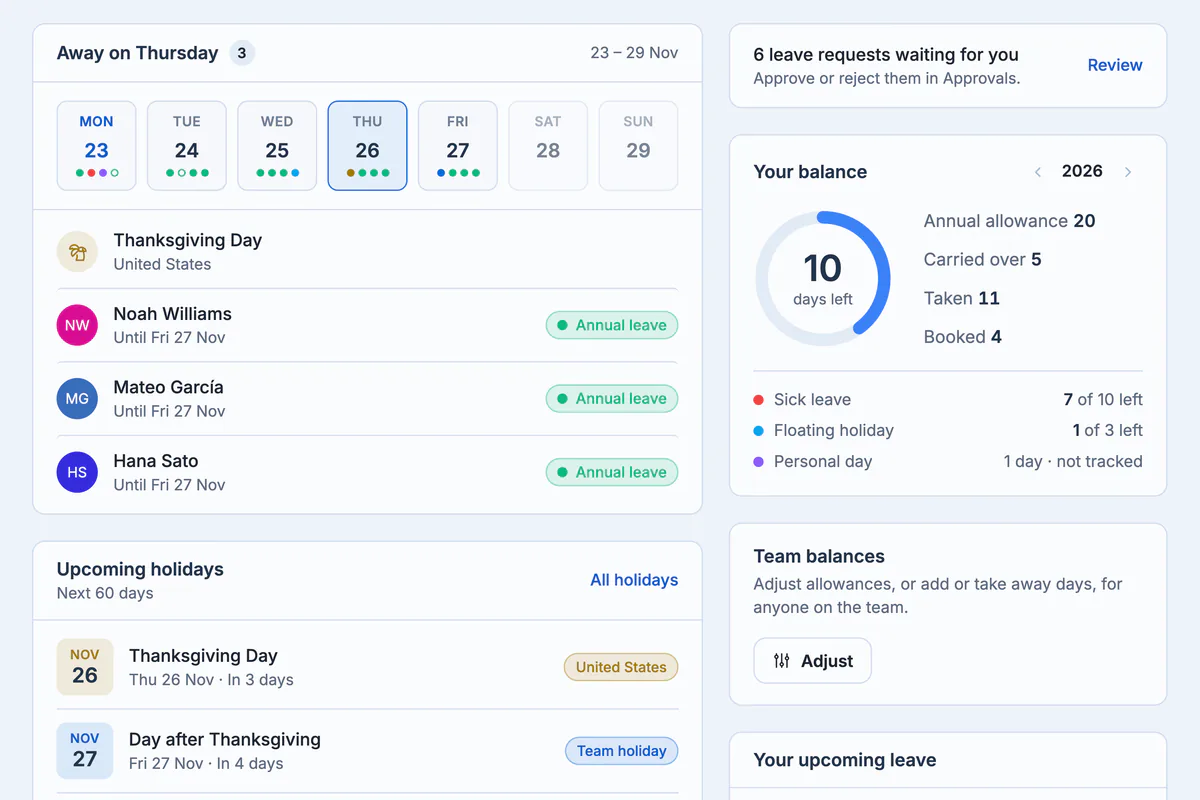
See who's away at a glance
The Overview tab is the first thing your team sees in Sup's leave tracker. Pick a day on the week strip to see its holidays and who's away. Each person's leave shows in its type's color, half days and pending requests are marked, and one click opens their leave.
- Upcoming holidays for the next 60 days, plus your own upcoming leave.
- Your balance as a ring of the days left, with allowance, carried over, adjusted, taken, booked and pending.
- Step back through every year since your workspace installed Sup.
- Approvers see how many requests are waiting for them and a Team balances card that links to Reports.
Approvals
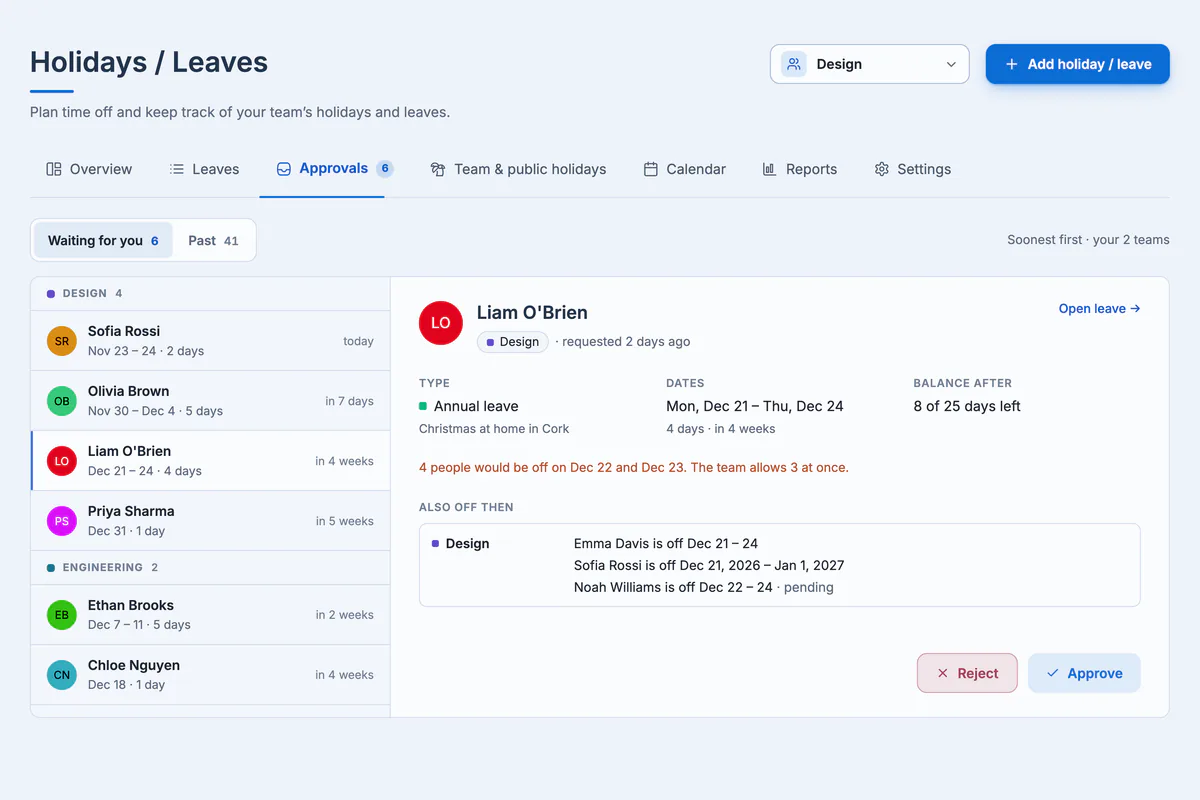
Approve leave with the full picture
The Approvals tab gathers requests from every team you approve for into one list, grouped by team. Pick a request and a pane beside the list shows the balance after approval, who else is off, and any rule the request breaks.
- Approve in one click, or reject with an optional note.
- Switch between “Waiting for you” and “Past” requests.
- A count badge on the tab shows how many requests need you.
Leave form
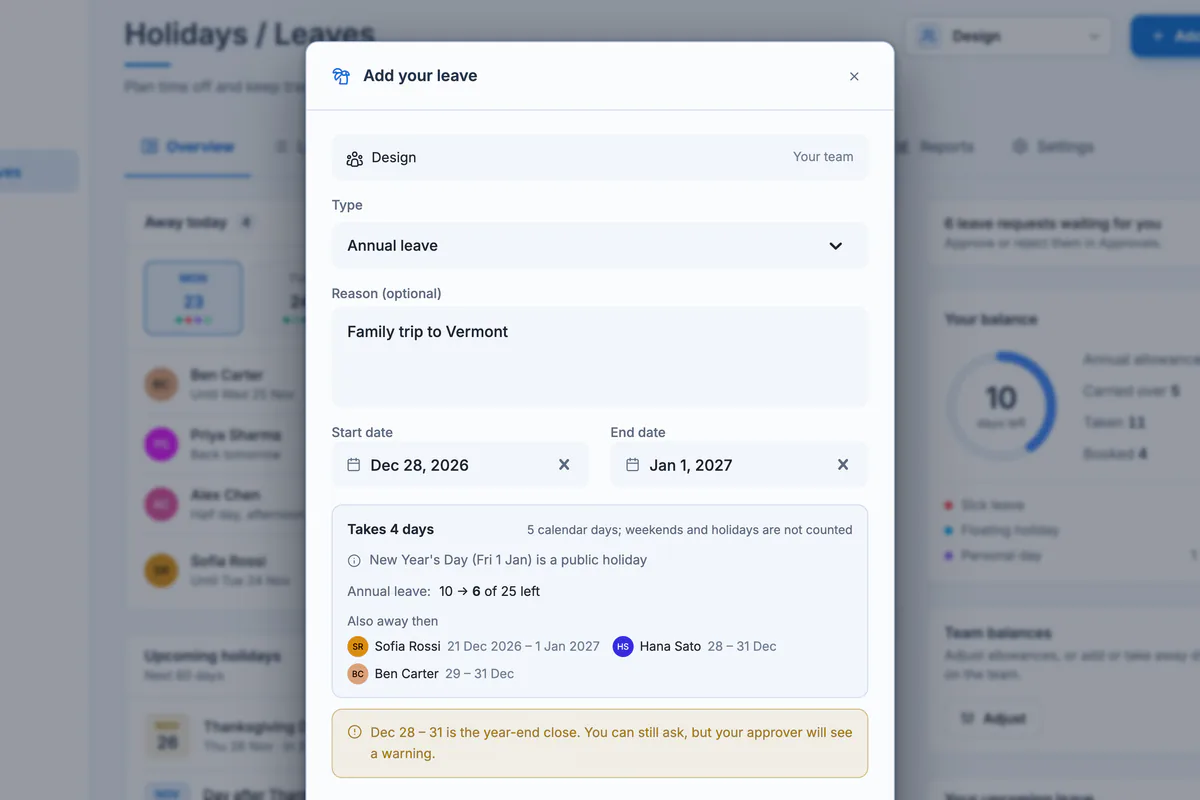
Know the impact before you request
While someone fills in the leave form, Sup Bot shows the working days the leave takes (holidays inside the range don't count), their balance before and after, and who else is away on those days.
- Blackout periods that either block requests or only warn.
- A limit on how many teammates can be off at once.
- Rules that would be refused stop the submit button, and softer ones show as warnings.
Settings
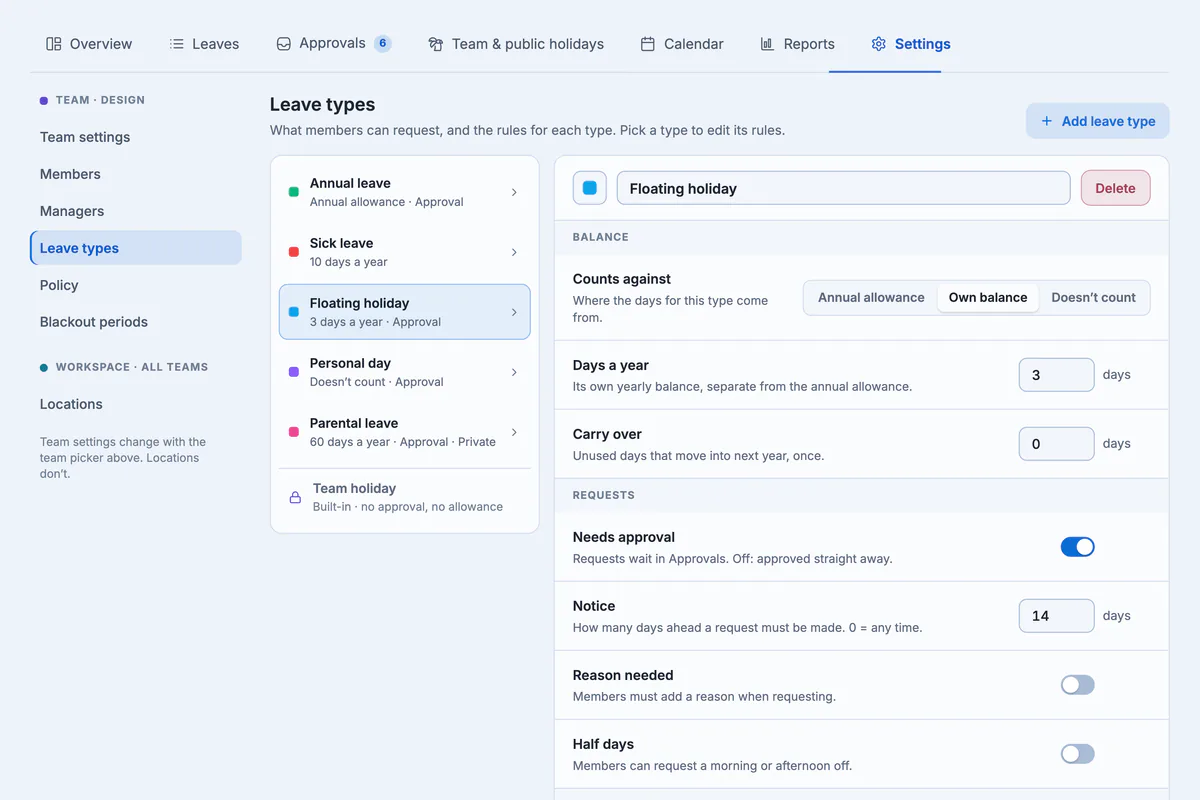
Leave balances and policies for every team
Give each team an annual allowance, a carry-over cap and a choice of whether people may go over their balance. Then create leave types that match your organization's needs, from vacation and sick leave to parental or special-purpose leave.
- Per leave type: color, which balance it counts against, its own allowance, required notice, whether a reason is needed, half days, and private types.
- Set a member's personal allowance and add or remove adjustments with a note.
- Open a member's balance from Reports, Settings > Members, or any leave's page.
Calendar
Your whole team on one timeline
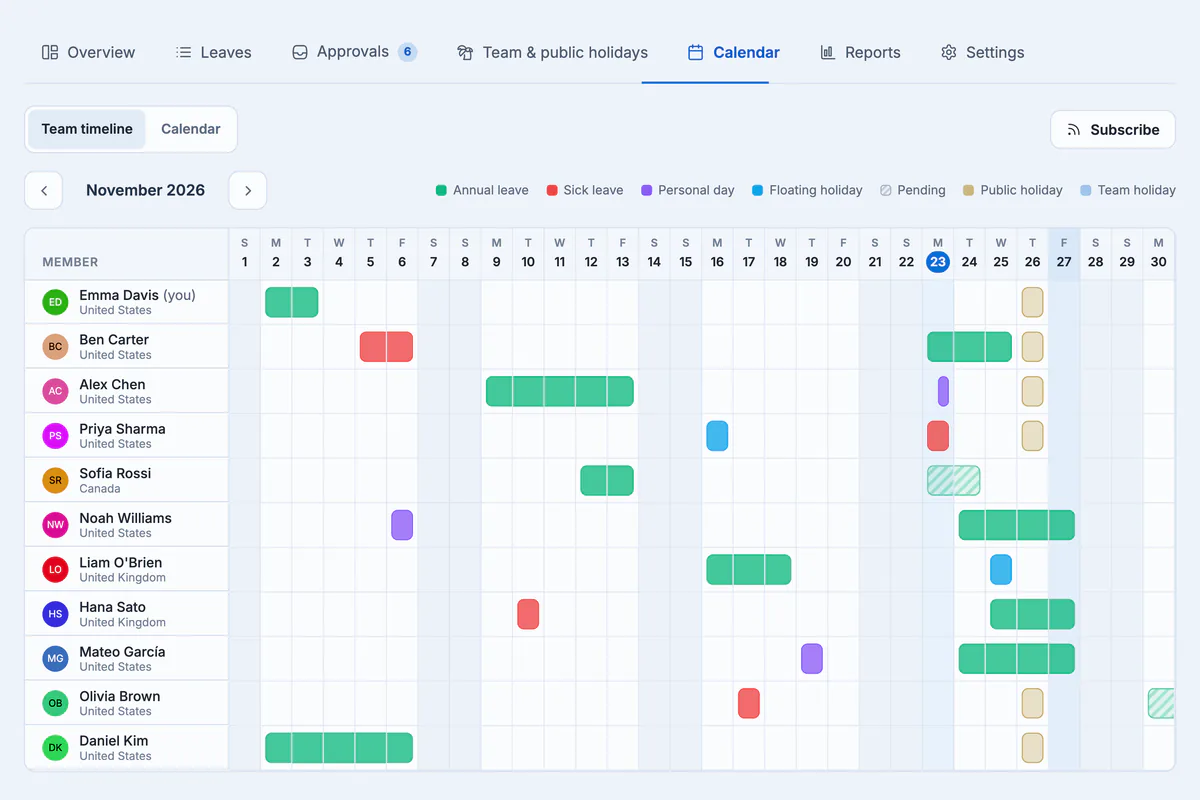
The Team timeline gives every member a row and every day a column. Leave shows as bars in its type's color, striped while pending, with public holidays, team holidays and today marked, so you can plan around who's out.
- Switch between the Team timeline and the Calendar view.
- Choose whether members see each other's leave.
Team & public holidays
Team and public holidays in one place
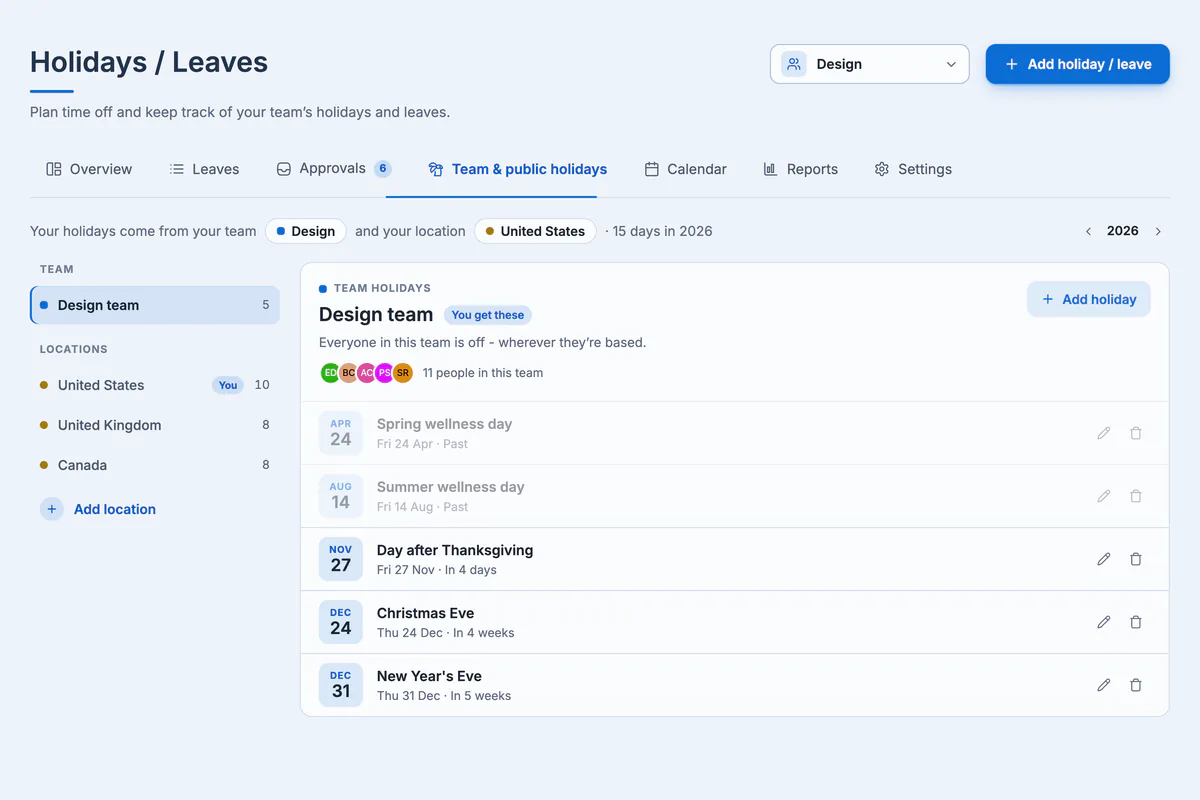
Team holidays and location-based public holidays live in one tab, with one list per team or location and a line showing how many holiday days you get in the year. One “Add holidays” dialog covers both kinds, including importing a country's public holidays.
- Manage locations in Settings, with a default location for your workspace.
- “Add holiday / leave” offers three clear choices: your leave, leave for a team member, or a team or public holiday.
Reports
Reports for balances, leave types and trends
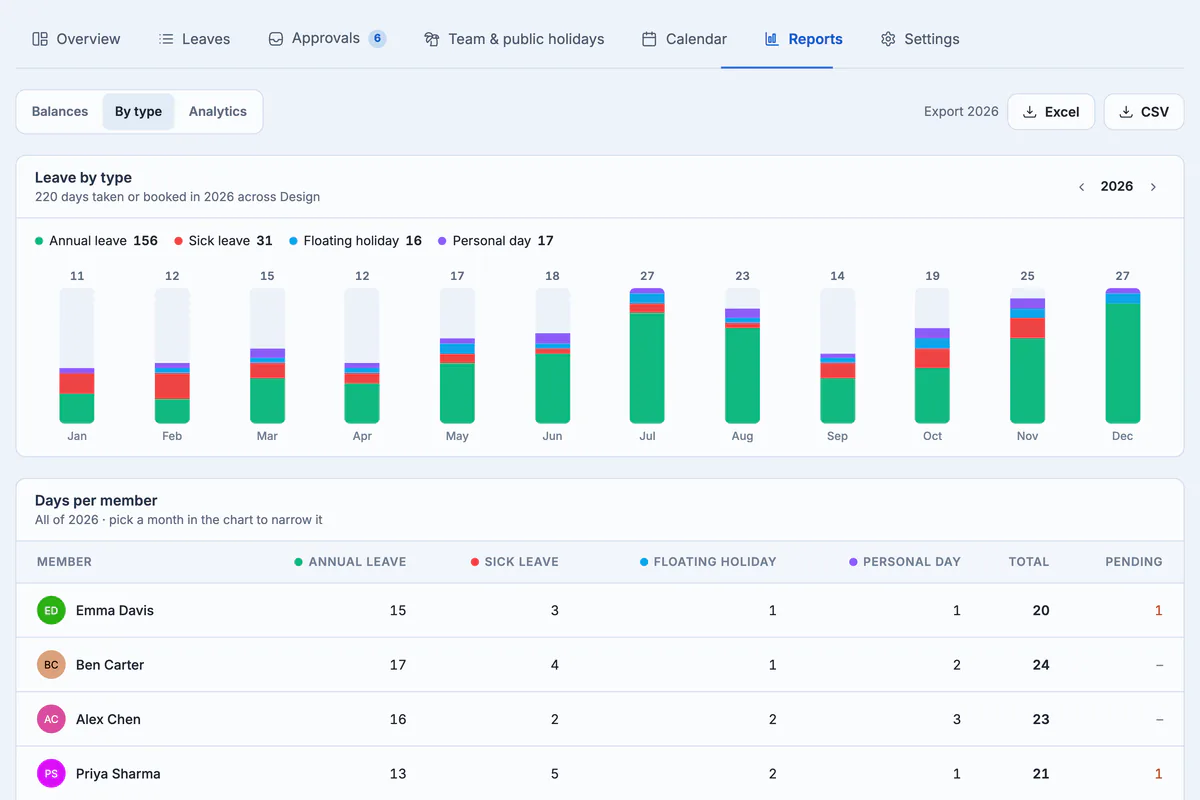
Reports > Balances makes it easy for HR and team approvers to review every member's balance in one place. The By type view stacks leave per month by type, with totals and per-member days alongside.
- Export any report to Excel or CSV.
- The pie and bar charts of holiday trends now sit under Reports > Analytics.
Leave history
Cancel leave without losing the record
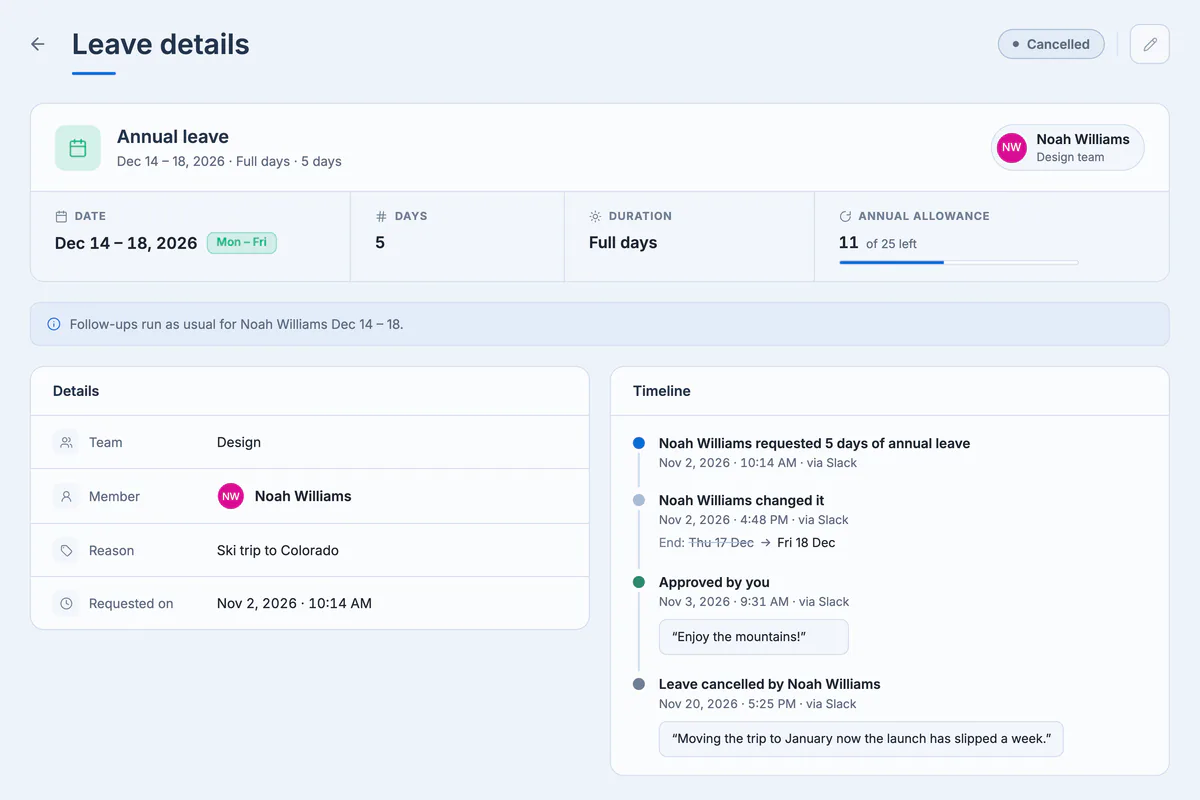
People can withdraw a pending request or cancel approved leave, with a reason. The leave stays on record as “Cancelled” and its days go back to the balance.
- A timeline on each leave shows who filed it, each edit, and who approved, rejected or cancelled it.
- Every step shows where it came from: Slack, MS Teams or Webex.
Team setup
Team-based holidays
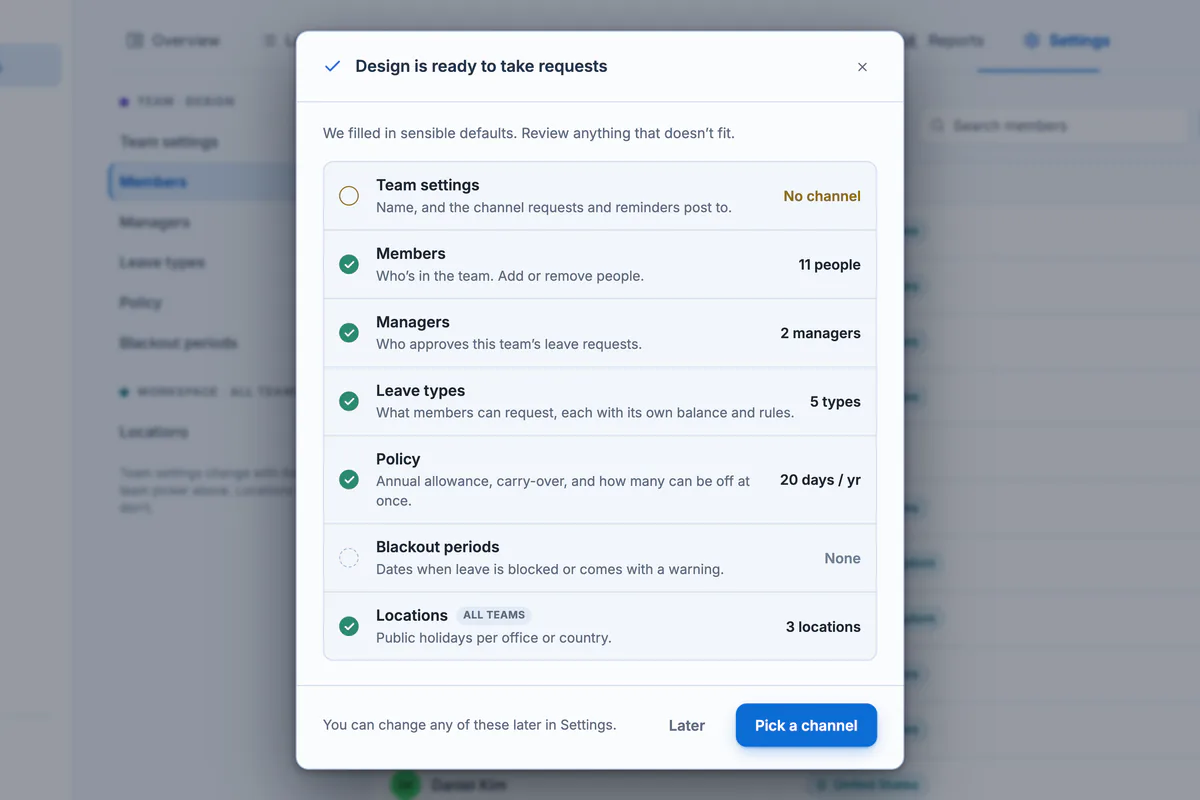
Create a team for each project or department, with its own leave notification channel, managers who approve requests, and settings. A new team opens on its Members section, and a checklist shows what's set up and what's still missing before it takes requests.
- Members in a searchable table that shows where each person is based.
- Add people one at a time or many at once.
- Settings in sections (Team settings, Members, Managers, Leave types, Policy, Blackout periods and Locations) that each save on their own.
Works where your team works
Built into Slack, MS Teams, and Webex
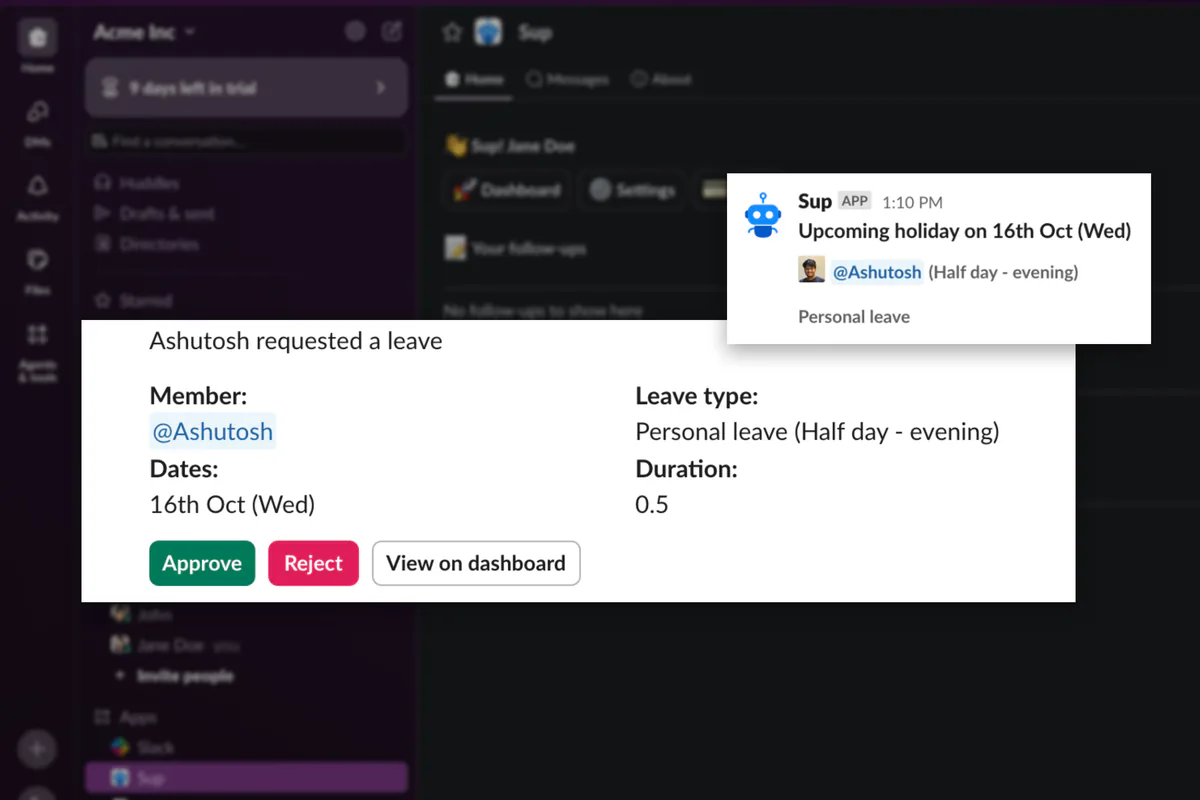
Timely notifications
Get reminders about upcoming holidays and team leave so you can plan projects ahead. Each request reaches its managers in Slack, MS Teams or Webex, where they can approve or reject it on the spot.
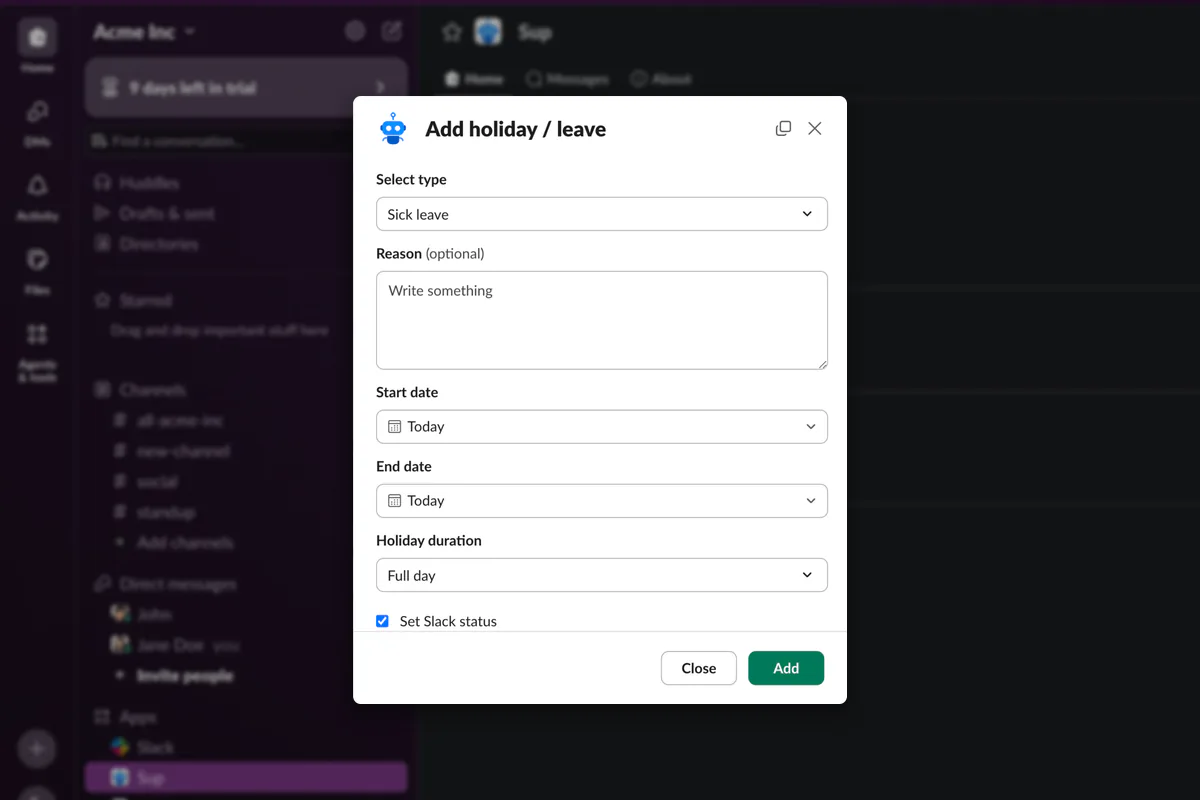
Request PTO anytime, anywhere
Submit time off from Slack, MS Teams, Webex or the web app. On phones and smaller screens the tabs stay compact and the approve and reject buttons sit in a bar at the foot of a leave's page.
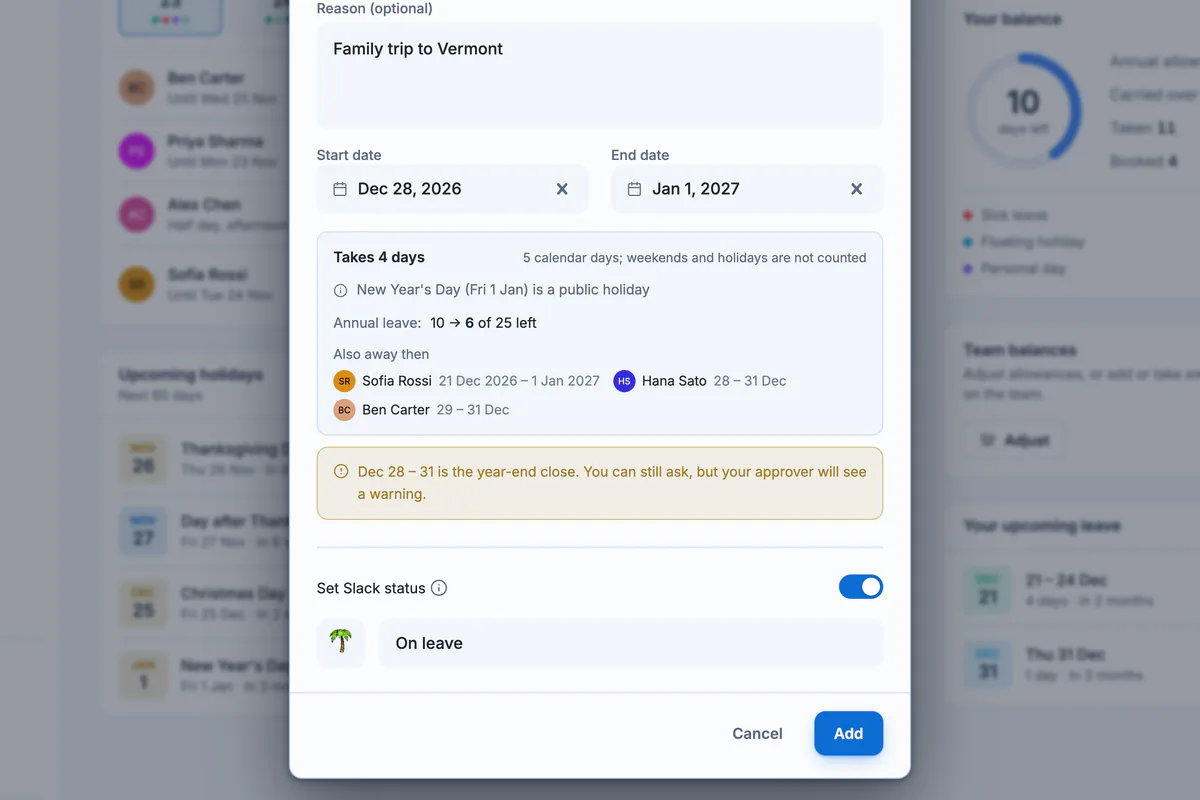
Automatic Slack OOO status
Whenever you request leave, Sup Bot sets your Slack Out-Of-Office (OOO) status for all the days you'll be away, so everyone stays in the loop and you can truly disconnect. Turn it off on a leave and Sup Bot clears it.
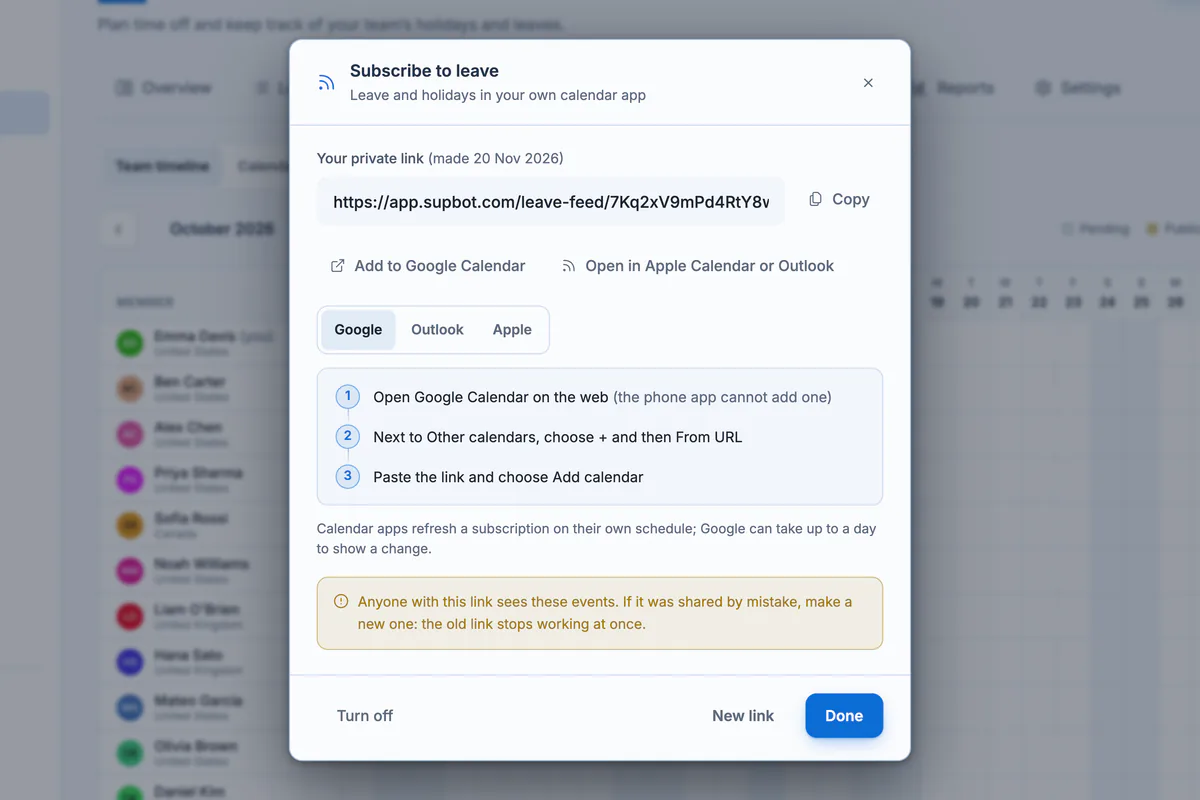
Google Calendar sync and calendar feeds
Sync approved leave and team holidays to a shared Google Calendar. Prefer your own calendar app? Subscribe to a private feed in Google Calendar, Outlook or Apple Calendar, and renew or turn it off anytime.
The rest of the platform
Leave tracking is one part of Sup
The same subscription your team logs leave in also handles the other small, repeated things that keep a company coordinated.
Keep everyone aligned
Recurring check-ins that replace the status meeting, answered in everyone's own time.
Daily & weekly follow-ups
Collect the same information, again and again
Retros, requests and anonymous feedback, asked on a schedule instead of by hand.
Forms, polls & recurring check-ins
Coordinate hybrid work
See who is in the office and who is remote, without asking in a thread.
WFO / WFH workflows
Notice how people are really doing
An anonymous read on how the team feels, tracked as a trend over time.
Anonymous mood check-ins
See the pattern over time
Every answer and absence kept as history you can export or push to Google Sheets.
Reports, stats & exports