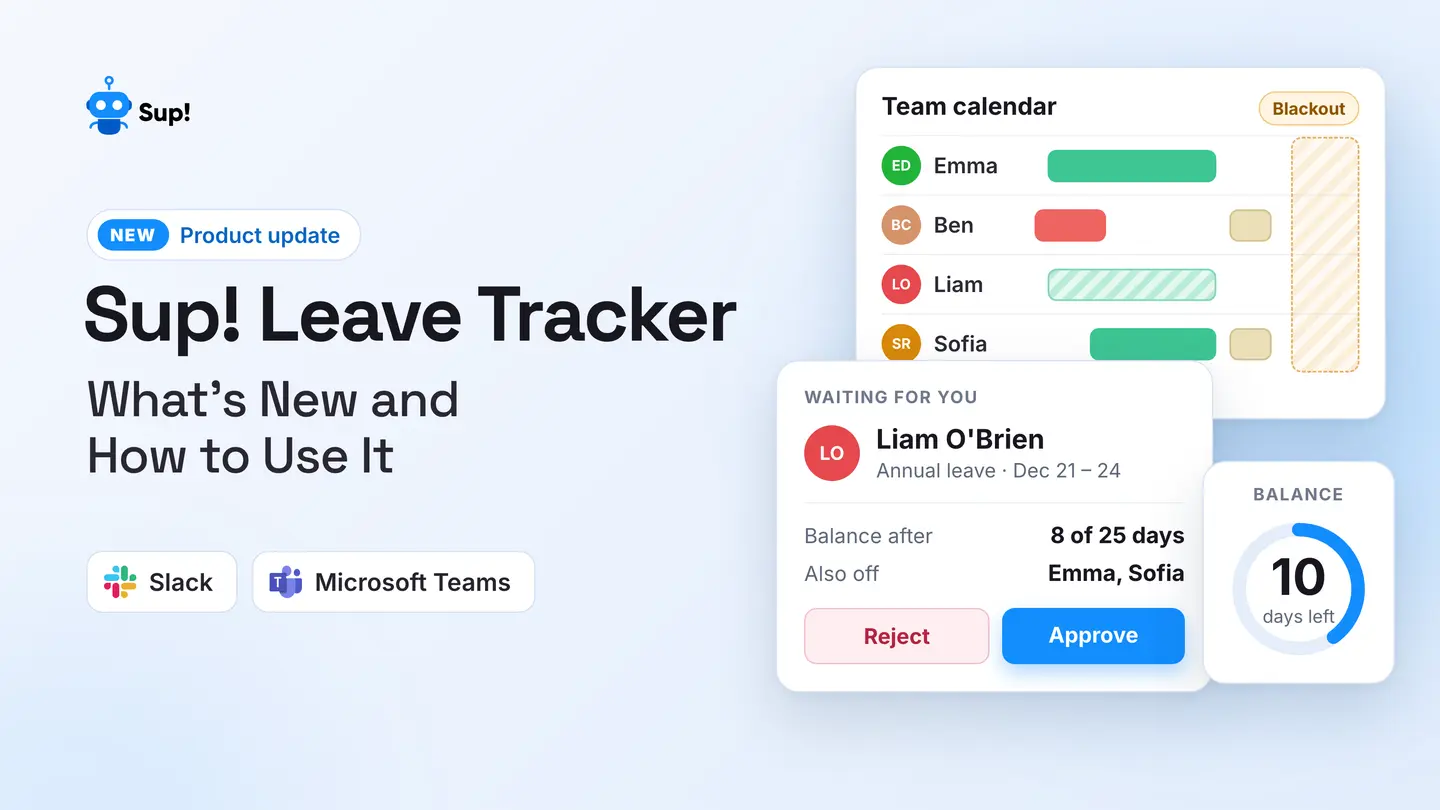
The Sup! Leave Tracker has had a major refresh. Team members can continue requesting time off directly in Slack or Microsoft Teams, and approvers can handle requests through direct messages in their chosen platform. What has changed is everything around that simple interaction: clearer leave balances, team-specific policies, a dedicated approvals inbox, public holidays, blackout periods, calendar subscriptions, and downloadable reports.
Because planning time off is about more than clicking “approve.” Someone needs to know how many days are available. A manager needs to know whether two people will be away at once. And the rest of the team needs a reliable answer to the eternal question: “Wait, who's off next Friday?”
The rebuilt tracker brings those pieces together. Here's what's new, what each improvement is for, and how to put it all to work without turning leave management into another project.
What's new in the Sup! Leave Tracker?
1. Team-specific leave policies and balances
Not every team follows the same leave rules. Different teams may have different annual allowances, leave types, or carry-over arrangements. The updated tracker supports a leave policy for each team, including annual allowance, carry-over, and rules for each leave type.
That means leave planning can start with an agreed policy instead of a separate spreadsheet and a collection of messages explaining exceptions.
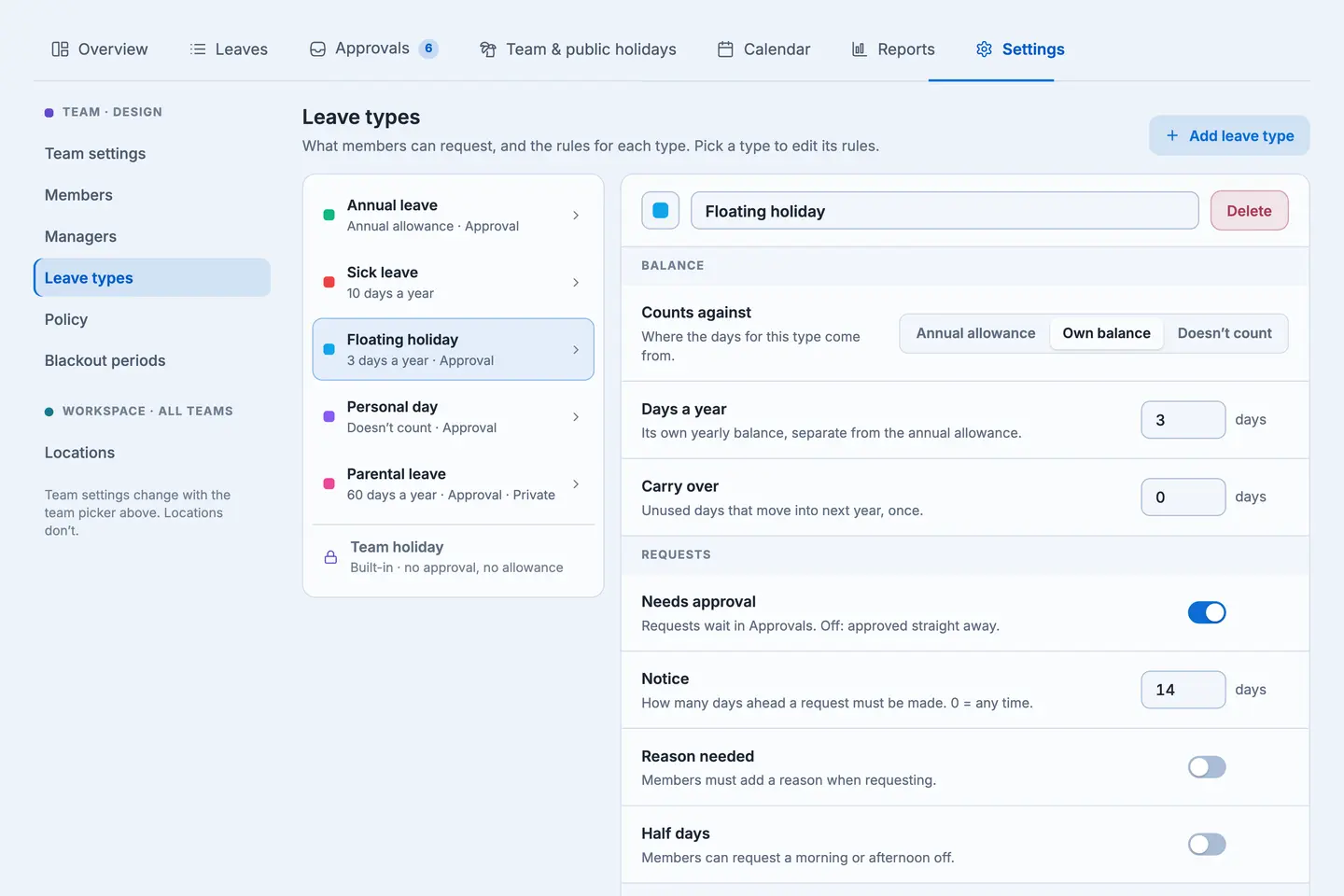
Best way to use it: Start by documenting your actual company policy. Decide which leave types each team needs, how much leave is available, and whether unused days can carry over. Then configure those rules consistently. Check your policy with the people responsible for HR and compliance before relying on balances for decisions.
For more context on how leave balances work, see our guide to PTO accrual.
2. An approvals inbox with more context
Approving a request shouldn't require detective work across three calendars and five messages. The new approvals inbox collects requests waiting for your decision in one place.
Crucially, it also shows the employee's balance after approval and who else is off. Those details help an approver evaluate the request in context, not just by its dates.
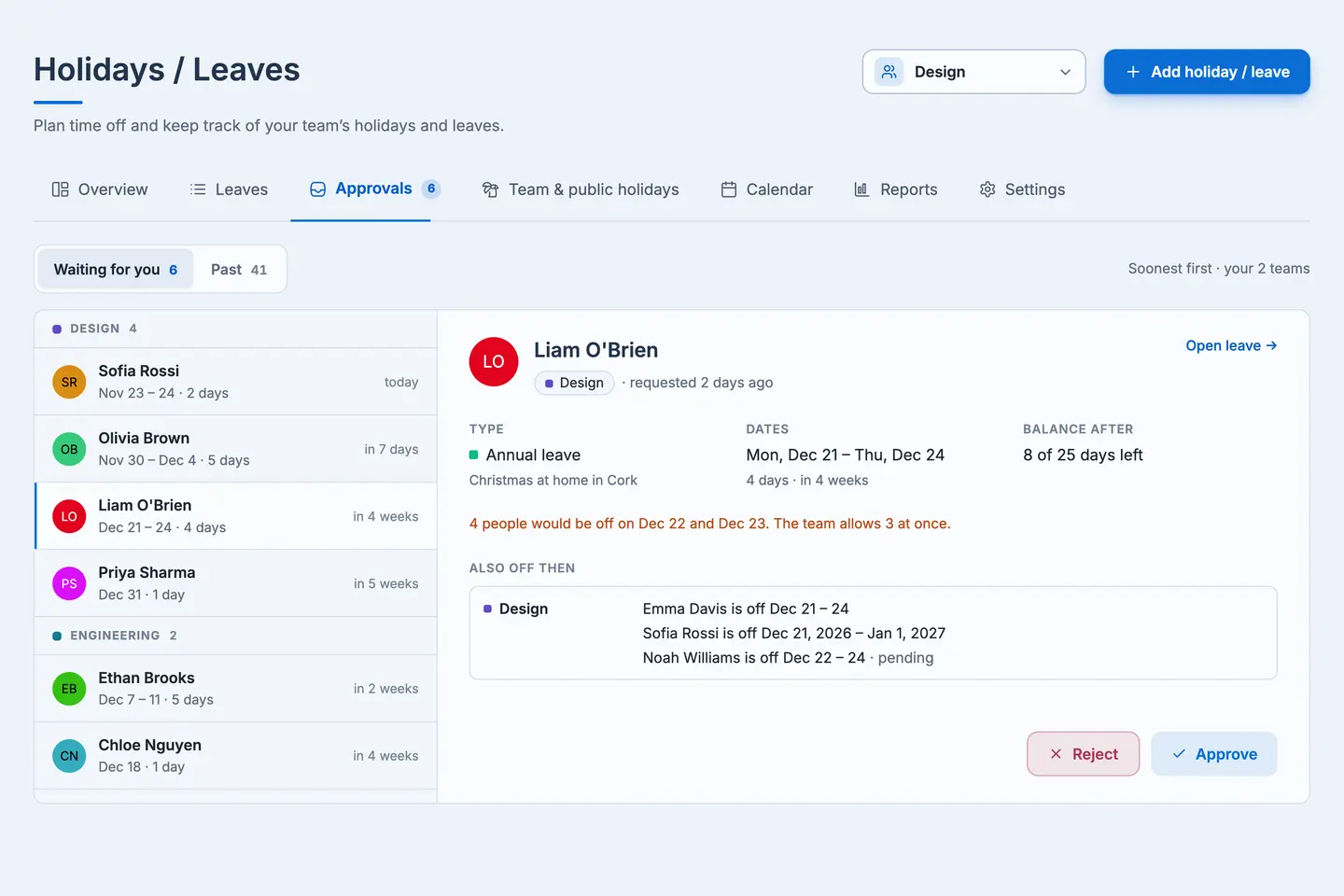
Best way to use it: Make the inbox part of a short, regular review routine. Before deciding, check the requested dates, the resulting balance, and overlapping absences. If coverage might be affected, discuss the handoff with the team rather than leaving a request unanswered.
The familiar direct-message approval experience remains available in Slack and Microsoft Teams, so managers can continue working where their teams already communicate.
3. Team holidays and location-based public holidays
For distributed teams, a holiday on one person's calendar may be a regular workday for someone else. The new Leave Tracker brings team holidays and public holidays into one place, with the ability to import a year's public holidays for each location in one go.
That saves the repetitive work of adding dates one by one and makes planning across locations more practical.
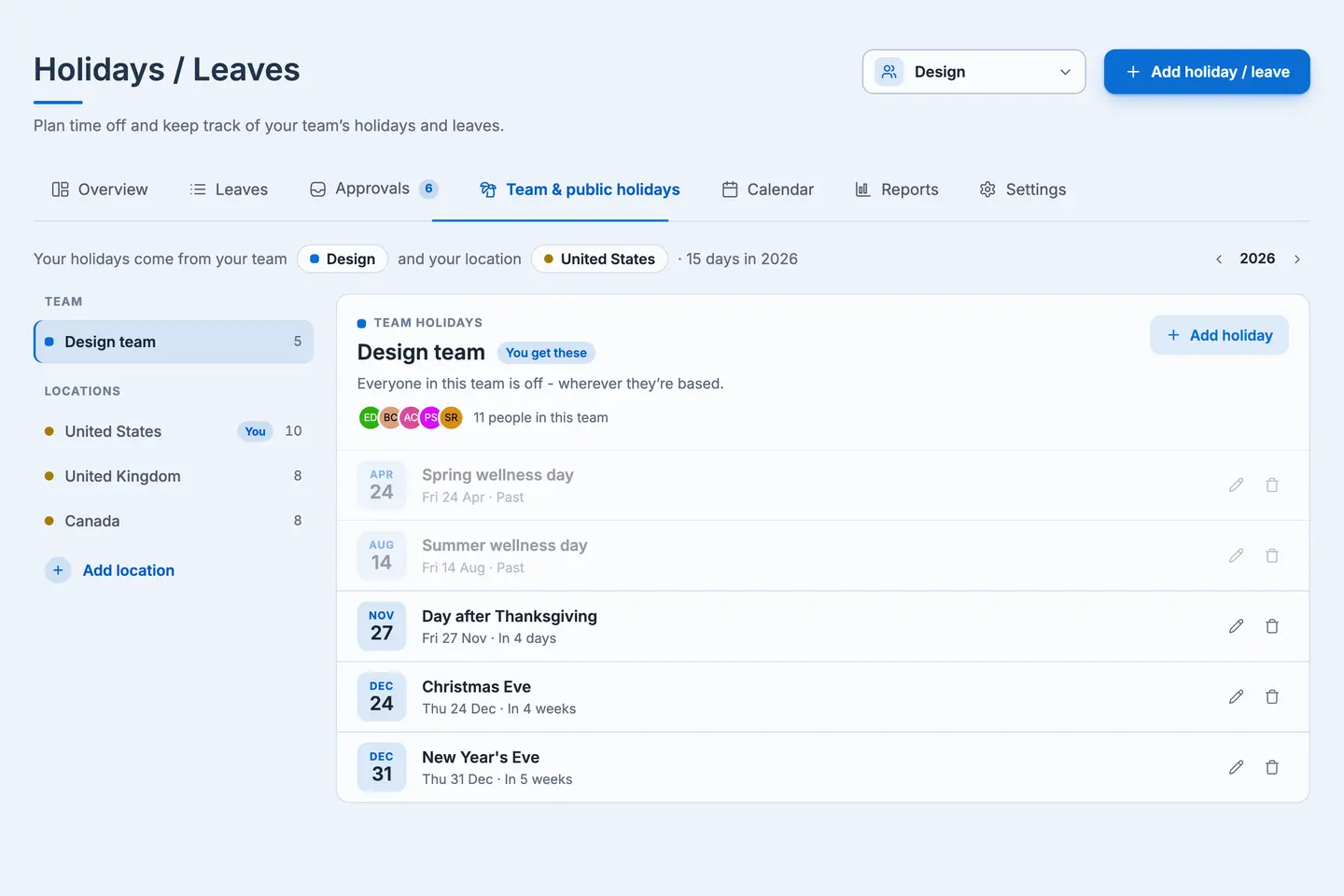
Best way to use it: Identify the locations your teams work from and import the appropriate public holidays for each. Review the imported dates against your organization's observed-holiday policy, especially where holidays are optional, moved, or company-specific. Keep team holidays up to date as plans change.
4. Blackout periods for important weeks
Some weeks need extra coordination: a product release, a major customer rollout, an annual audit, or another event where team coverage matters. Blackout periods give you a way to mark those busy windows as periods to keep free of leave.
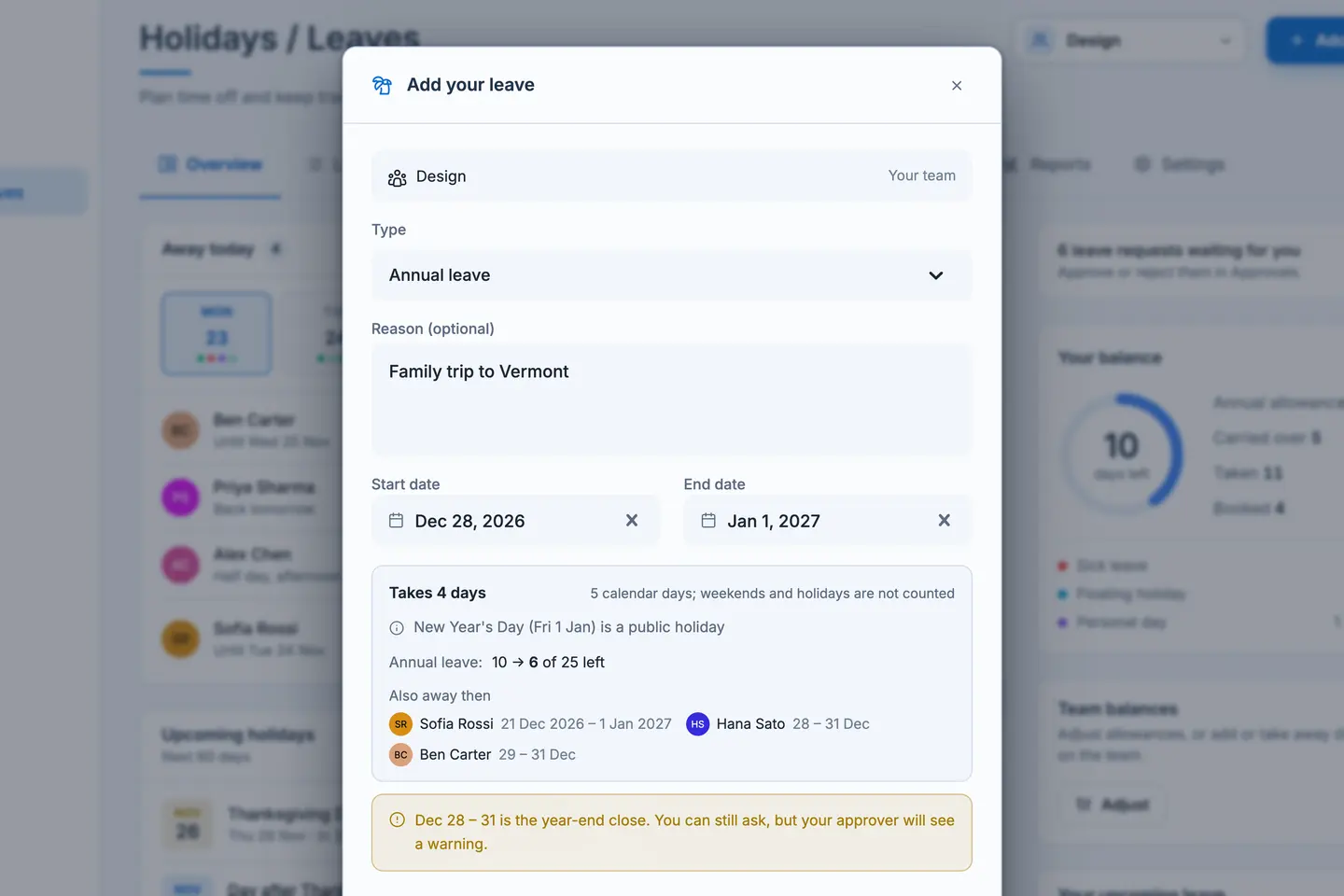
Best way to use it: Use blackout periods sparingly and communicate them well in advance. Explain why the dates matter and who employees should contact if they have an exceptional need. A blackout period should support thoughtful planning, not replace a fair leave policy or necessary human judgment.
5. A calendar your team can subscribe to
You can now subscribe to your team's leave and holiday calendar from Google Calendar, Apple Calendar, or Outlook.
This is particularly useful when people already plan their weeks in a calendar. Instead of remembering to check another page before scheduling a sprint review or customer meeting, they can refer to team availability alongside their existing schedule.
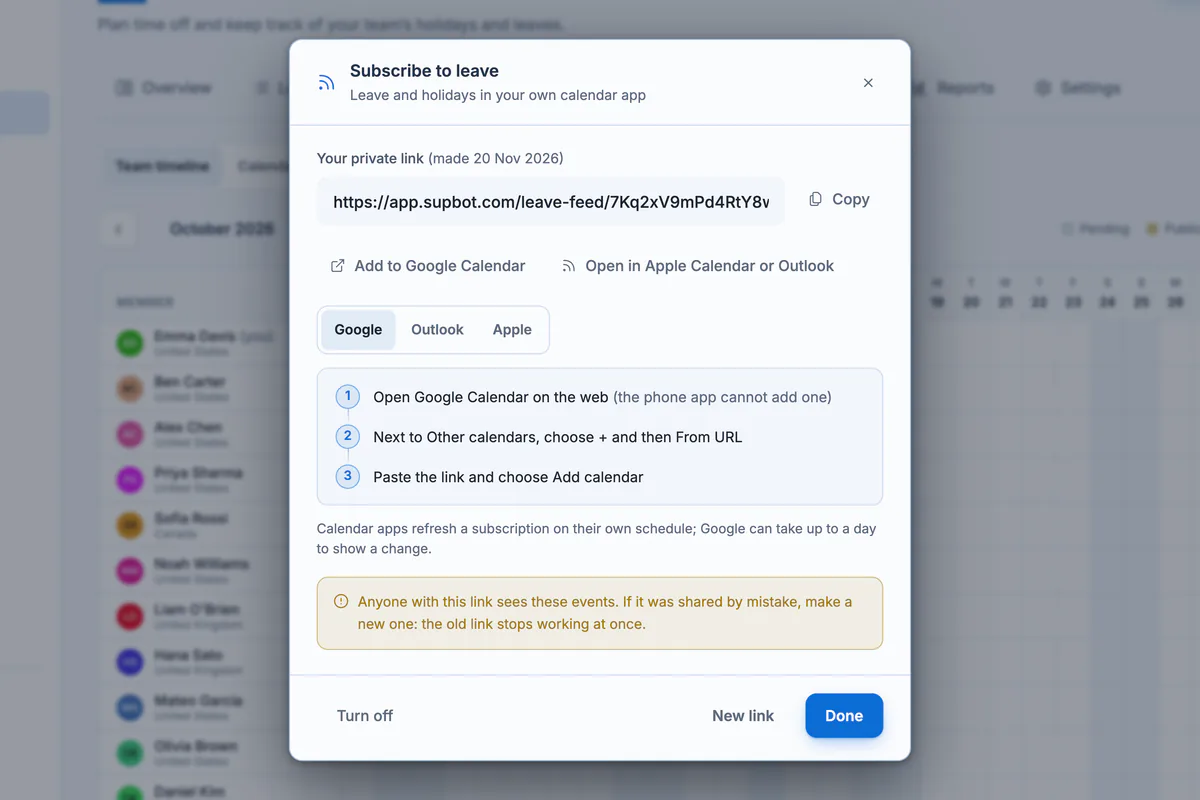
Best way to use it: Encourage team members and managers to subscribe to the relevant calendar and use it when planning meetings, handoffs, and deadlines. Check your calendar application's subscription refresh behavior, since updates may not appear instantly.
6. Leave reports you can export
The updated reporting view brings together everyone's balances and leave broken down by type. Reports can be exported to Excel or CSV for further review.
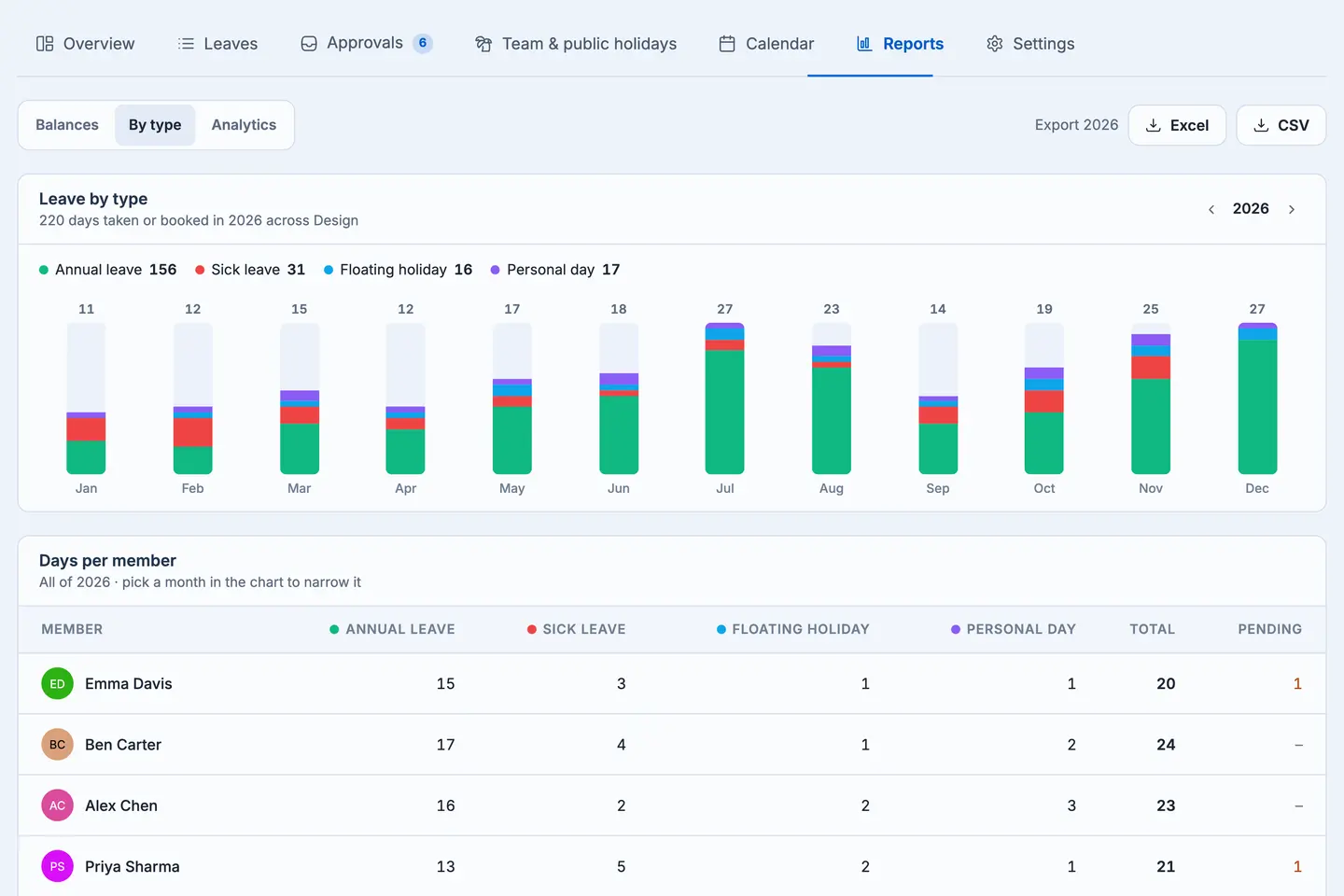
That is helpful for routine policy checks, internal planning, and conversations with HR or finance. It also means the data doesn't have to be reconstructed manually when someone needs a structured overview.
Best way to use it: Set a regular reporting cadence, such as monthly or quarterly, depending on your team's needs. Review balances and leave-type patterns, then export only when a separate analysis or record is genuinely needed. Treat exported leave information as sensitive workplace data and share it only with appropriate people.
How to set up the Sup! Leave Tracker for your team
The most effective setup follows the order in which leave decisions are actually made: define the rules, make dates visible, and then establish a review routine.
- 1.Start with your teams. Confirm which employees belong to each team and who is responsible for reviewing their leave requests.
- 2.Set the leave policy. Define annual allowances, leave types, carry-over, and any rules that apply to each team. Compare the configuration with your approved written policy.
- 3.Bring in holidays. Import public holidays for each relevant location and review team-specific holidays.
- 4.Plan critical periods. Identify any justified blackout periods, announce them early, and make sure everyone understands the reasoning.
- 5.Make availability visible. Have relevant colleagues subscribe to the leave and holiday calendar in their preferred calendar application.
- 6.Agree on an approvals routine. Ask approvers to review pending requests, remaining balances, and overlapping time off regularly.
- 7.Review reports periodically. Use the balance and leave-type reports to spot discrepancies or planning issues before they become last-minute surprises.
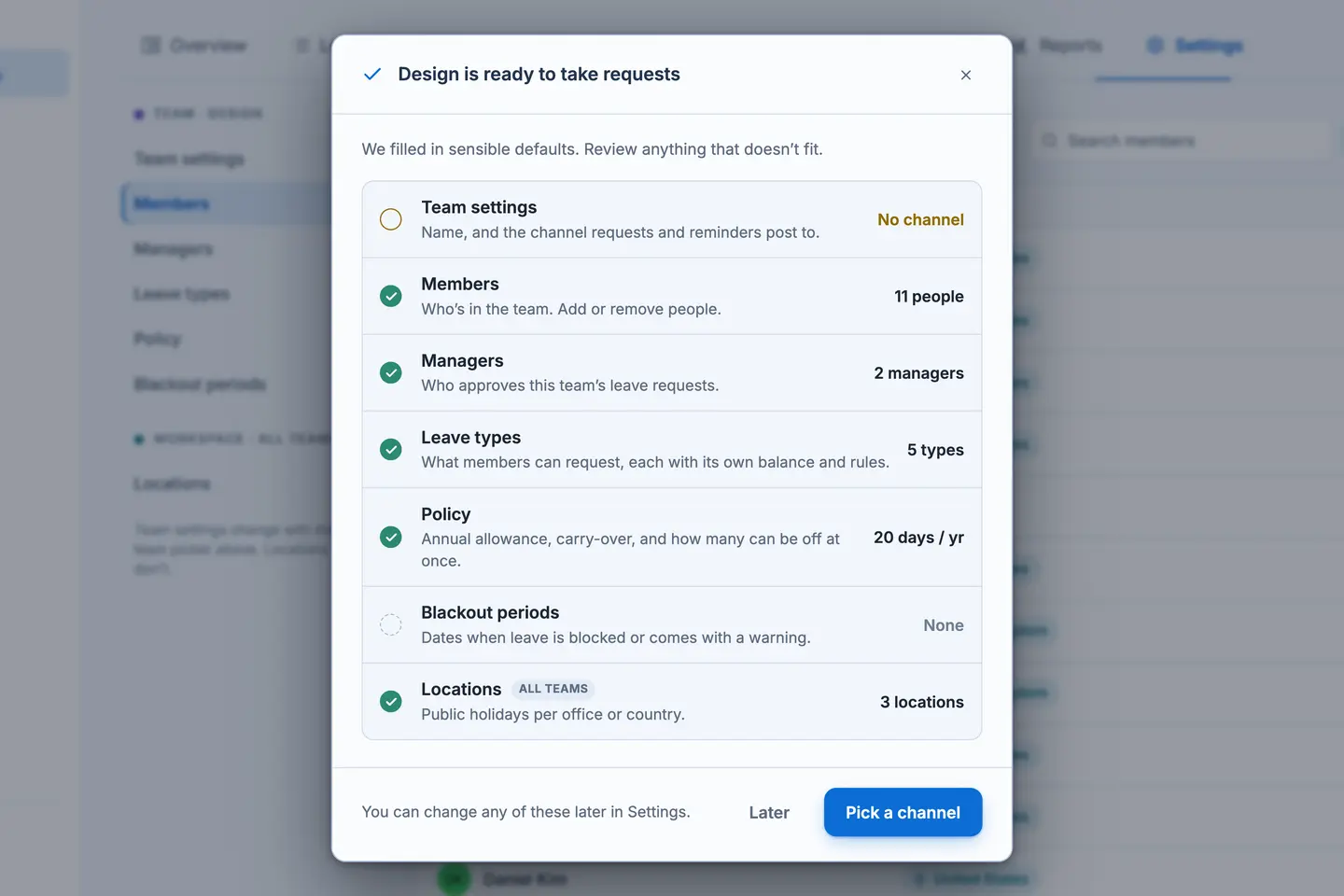
These are recommended administrative steps, not a claim about the exact order of buttons or screens in the product. Your team's policies should guide the configuration.
The Sup! Leave Tracker in everyday use
Imagine a small engineering team preparing for a release. Priya wants a few days off next month. She submits her leave request in the team’s existing chat platform, whether that is Slack or Microsoft Teams, just as she did before the update.
Her approver receives the request through the familiar direct-message flow. With the new approvals inbox, the approver can also review pending requests, see Priya's balance after approval, and check who else will be away. The team calendar provides a broader view of leave and holidays, while any planned blackout period helps make critical dates clear ahead of time.
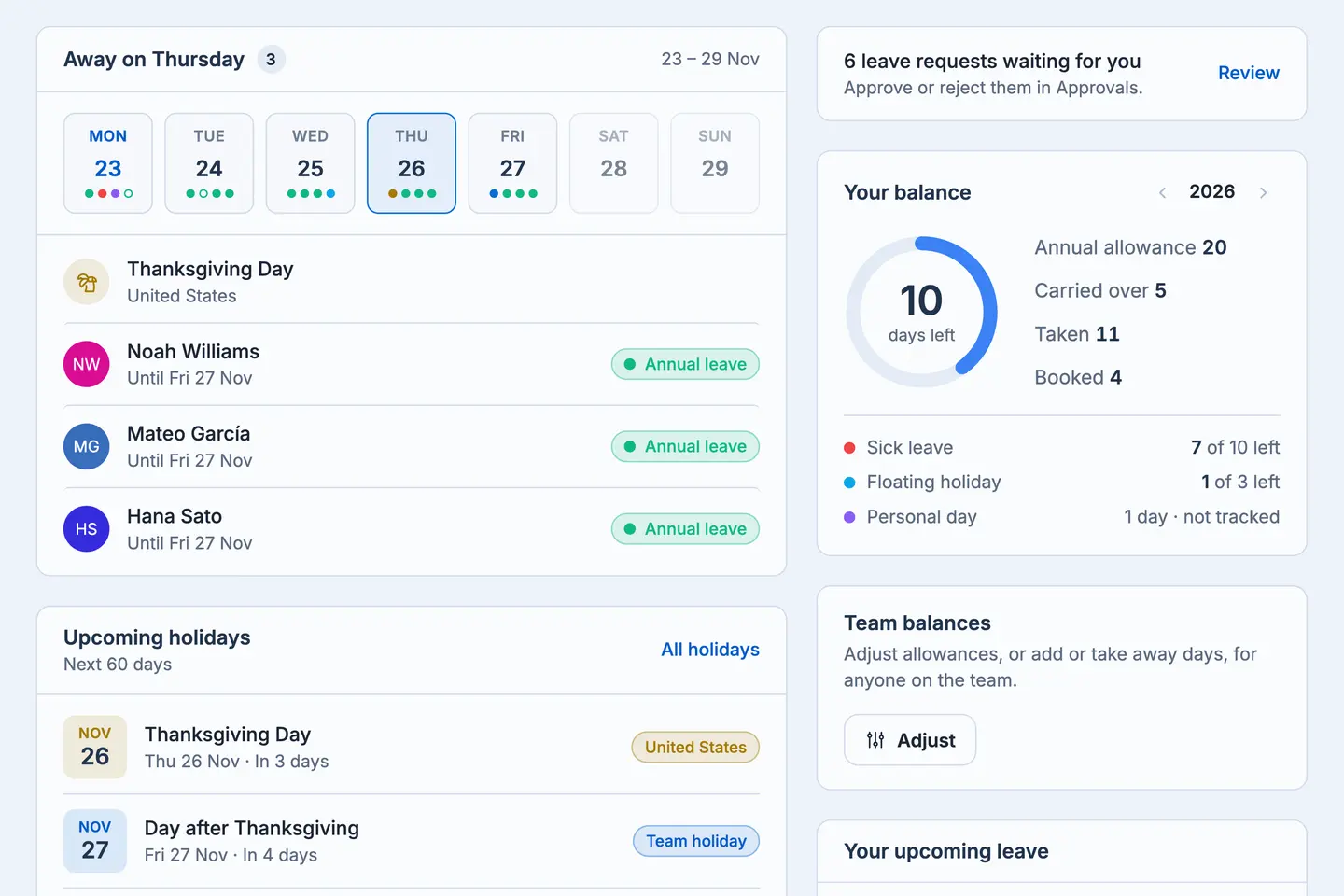
Once the team has planned coverage, the manager can make a better-informed decision. Later, an admin can use reports to review leave balances and leave by type.
This is an illustrative scenario, not a claim that Sup! automatically assigns release coverage or resolves scheduling conflicts. The point is simpler: the relevant information is easier to bring into one decision.
A few habits that make leave tracking work better
A tool can make leave information easier to find, but good habits still matter.
Keep policies understandable. Employees should know what each leave type means, how their allowance works, and who approves requests. If the policy is confusing outside the tool, configuring it won't make it clearer.
Review requests promptly. A shared inbox is useful only if someone checks it. Agree on reasonable response expectations so people can plan their time away with confidence.
Look at coverage, not just balances. Someone may have enough leave remaining while several teammates are already away. Use the overlap information to coordinate work and discuss handoffs without making time off unnecessarily difficult.
Keep holidays accurate. Review location-based holiday imports and company-specific days off. A calendar is only helpful when the dates can be trusted.
Use reports responsibly. Export data for a defined purpose, keep access limited, and avoid treating leave-type summaries as a measure of individual performance.
If you're moving away from manual records, our Excel leave tracker guide is a useful reminder of the fields and upkeep that spreadsheets typically require.
The rebuilt Sup! Leave Tracker keeps the part people already liked: requesting leave in Slack or Microsoft Teams and handling approvals through direct messages. The bigger improvement is what surrounds those interactions. Team-specific policies and balances make entitlements easier to understand. The approvals inbox adds decision-making context. Holidays, blackout periods, and calendar subscriptions support better planning. Reports help teams review what happened over time.
For the smoothest rollout, begin with accurate policies and holiday calendars, then make approvals and reporting part of a lightweight routine. The goal isn't to add process for its own sake. It's to help everyone spend less time chasing leave information and more time planning around it. Explore the Sup! Leave Tracker to learn more.
 Add to Slack
 Add to Teams
FAQs
Can employees request leave in Slack and Microsoft Teams?
Yes. Sup! supports leave requests in both Slack and Microsoft Teams, with approvers able to handle requests through direct messages. The new features add policy, planning, and reporting context around that existing workflow.
Can different teams have different leave allowances?
Yes. The update introduces a leave policy for each team, including annual allowance, carry-over, and rules for each leave type. Your organization should decide those rules based on its actual policies before configuring them.
Can approvers see overlapping leave requests?
The approvals inbox shows who else is off alongside requests awaiting a decision and the balance after approval. This gives approvers more context when considering coverage, although the team still needs to coordinate any handoffs or exceptions.
Which calendar apps can I use?
The new subscribable calendar supports Google Calendar, Apple Calendar, and Outlook. It is designed to let people view their team's leave and holidays in the calendar application they already use. Refresh timing can depend on the calendar app.
Can I download leave data for reporting?
Yes. Reports include everyone's balances and leave by type, and they can be exported to Excel or CSV. Review the data for accuracy and follow your organization's privacy and access rules when sharing exports.