
The hybrid work model is here to stay, and it brings flexibility and opportunities, but it also introduces challenges in managing team dynamics and productivity. One key challenge is tracking who is working from home (WFH) and who is working from the office (WFO) not just for today, but also for tomorrow, the upcoming week, and even the month ahead. Keeping this information organized and up-to-date is essential for smooth operations and effective team management.
In this blog, we’ll explore two effective methods to track your team’s work location on Slack.
1. Slack workflow for tracking WFH/WFO status in hybrid teams.
Creating a custom workflow in Slack can help automate the process of tracking your team’s work location, ensuring a structure to the process. Here’s a step-by-step guide on how to set it up:
a) Access and choose/customize a workflow
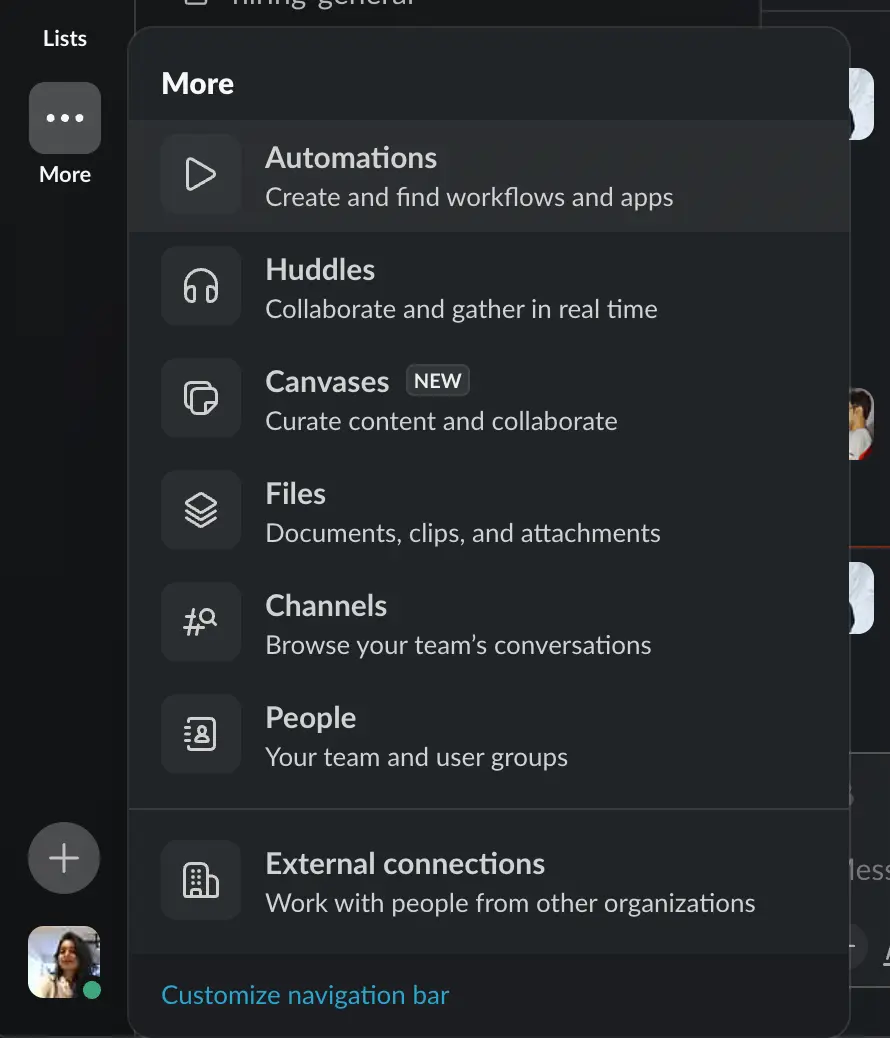
- Access the Slack Workflow section by clicking on your workspace name, selecting “More,” and then “Automations”.
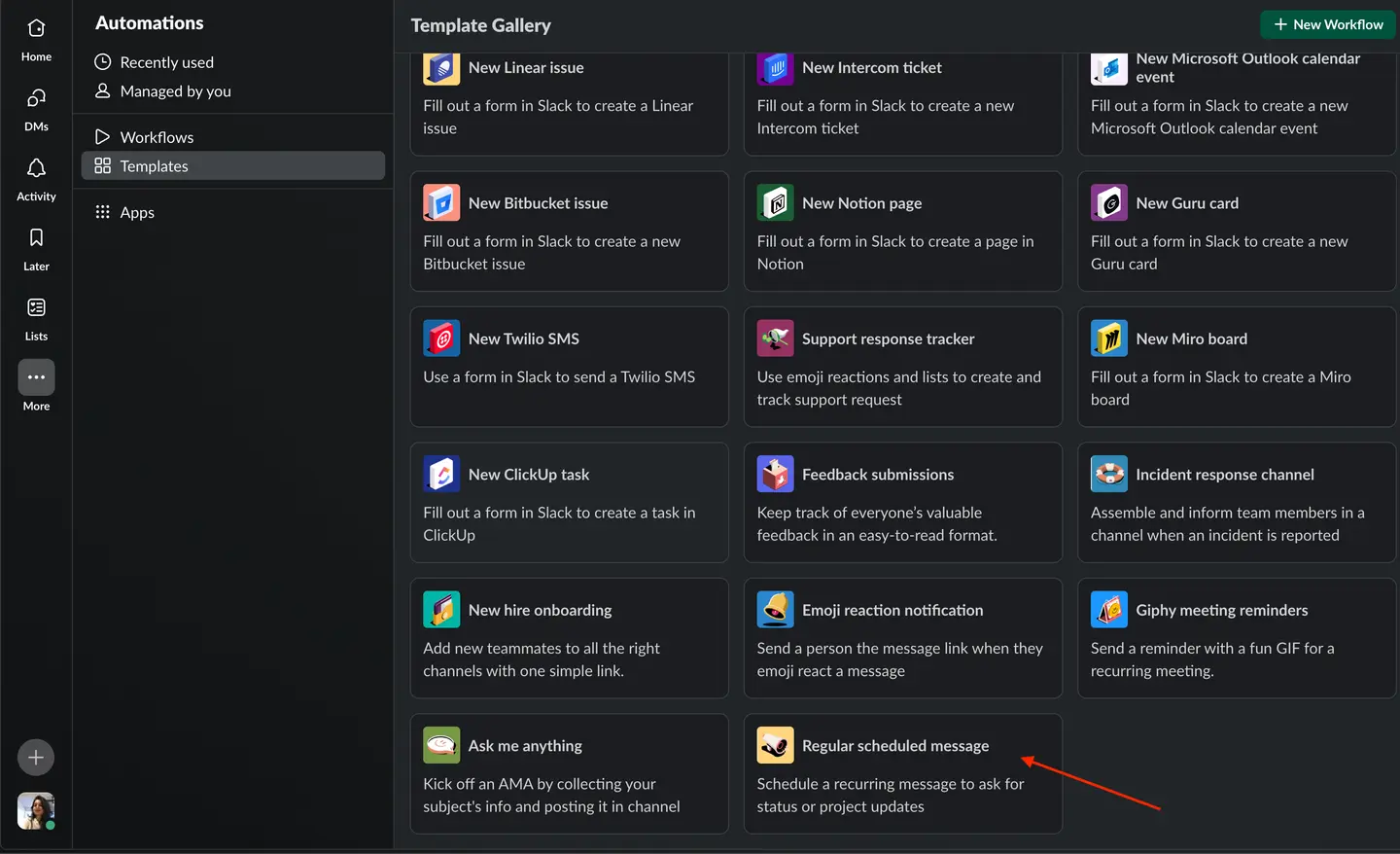
- You can now either select from the existing templates or create a new custom workflow for you. I am going to use an existing template called “Regular scheduled message” and make changes to fit my needs.
b) Select a Slack workflow trigger
Selecting an appropriate trigger for your Slack workflow is crucial for ensuring timely and accurate updates from your team. Since we are using a pre-defined template, the workflow is set to run on a schedule. Here’s how to configure it effectively:
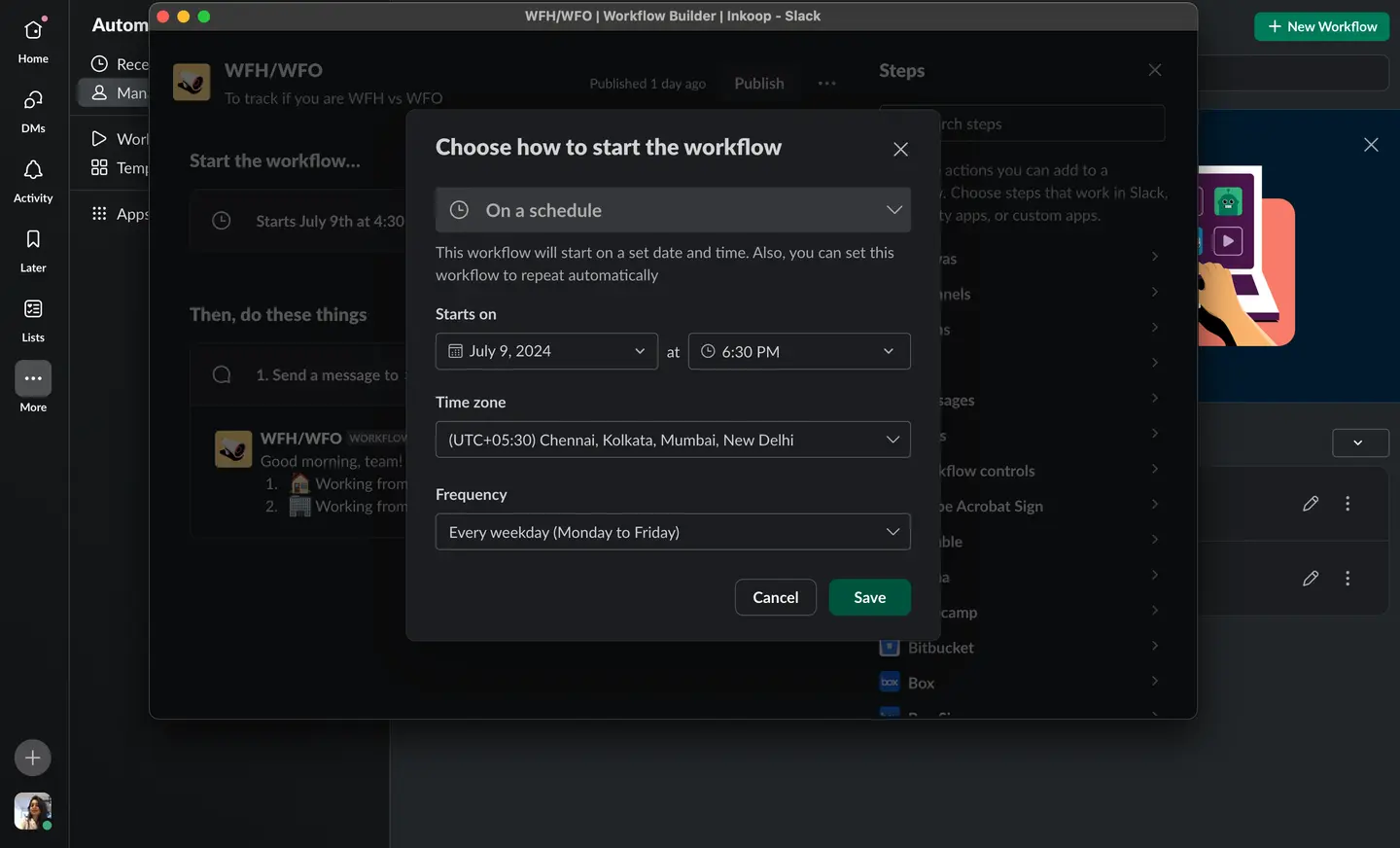
- Starts on: Choose the specific date when you want the workflow to begin. This can be immediately or a planned future date to align with a new project phase or company policy implementation.
- Starts at: Specify the exact time the workflow should trigger each day. For example, setting it to trigger at 8:30 AM may not be ideal if your company starts work at 9 AM. Instead, consider setting the trigger towards the end of the workday, around 4:30 PM or 5:00 PM. This timing allows team members to provide their work location for the next day, enabling better planning and coordination for the upcoming workday.
- Time zone: Ensure the workflow runs according to your team’s local time zone. This is particularly important for distributed teams working across different time zones. Slack allows you to set the time zone, ensuring that notifications are sent at the appropriate local time for each team member.
- Frequency: If your team’s work location changes frequently, setting the workflow to run daily is ideal, ensuring daily updates and keeping everyone informed. Depending on your specific needs, you can set a custom frequency, such as updates every Monday, Wednesday, and Friday.
c) Configure the Slack workflow message to channel
Crafting a clear message is essential for ensuring that team members respond promptly and accurately. The message should be direct and easy to understand, prompting team members to update their work location. Here’s how to configure this step effectively:
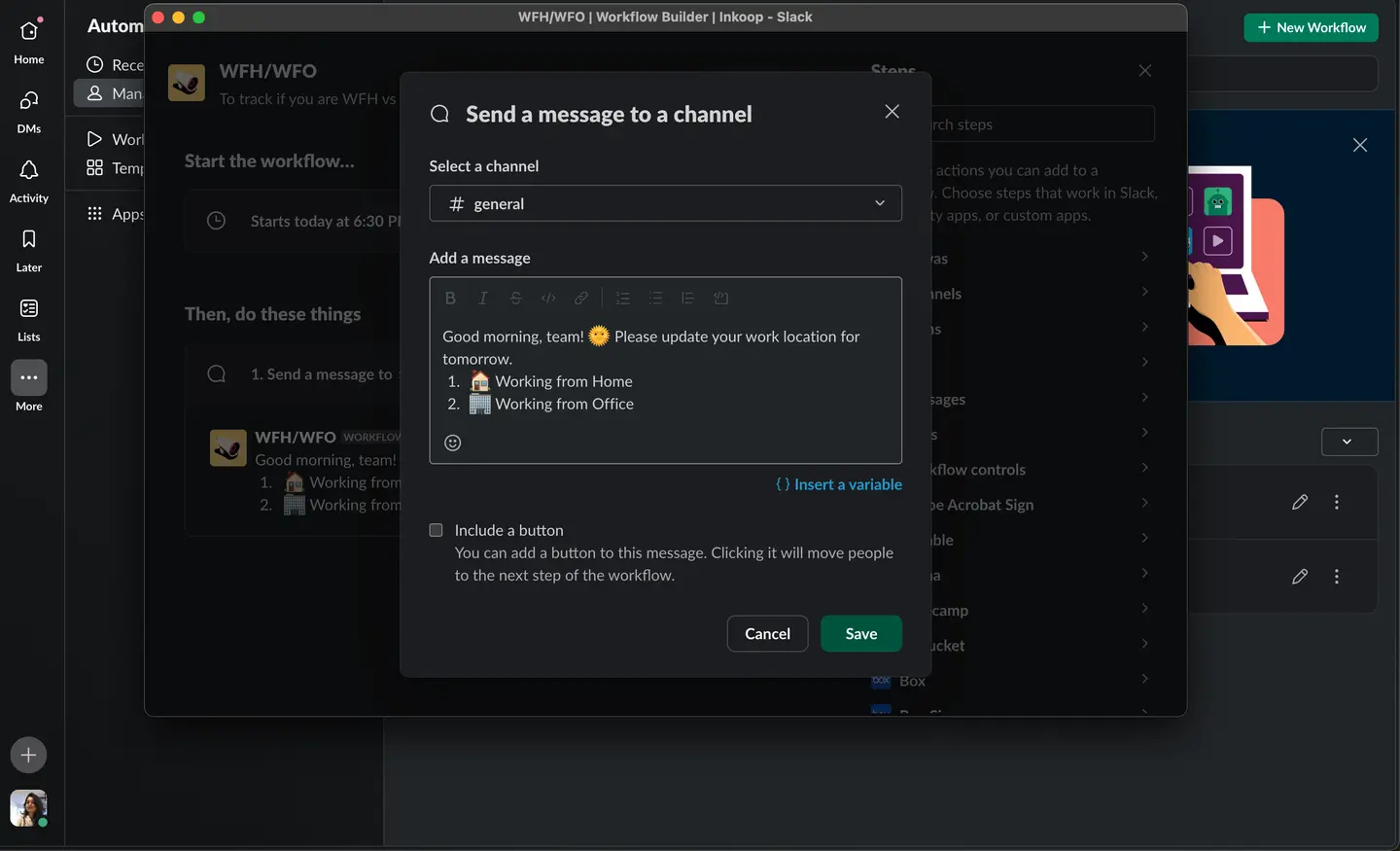
- Channel: Choose the right Slack channel for this workflow message**.** This channel should be one that all team members have access to and regularly check, such as a general or team-specific channel.
- Message: cds Write a message that is both clear, easily understandable. Use a friendly tone to encourage participation. For example:
- "Good morning, team! 🌞 Please update your work location for tomorrow:"
- 🏠 Working from Home🏢 Working from Office
d) Publish and Make adjustments(if needed)
Once your workflow is set up, it’s crucial to conduct an initial test to verify that the workflow triggers correctly and that the message is sent to the chosen channel at the specified time. This involves checking that all interactive elements, such as emojis, function as intended.

Monitor the responses from your team during the initial test run and make necessary adjustments to the workflow based on feedback.
2. Sup Bot WFH/WFO workflow
Slack workflow is an automation tool, for sure, but does it solve all the problems? No. When there is already a Slack workflow, why should someone even go for another option? Here’s why.
- 1.Default Scheduling:With Slack workflows, team members need to respond to the message every time it is sent. In contrast, Sup Bot allows you to set a default schedule where team members only need to update their status when there is a change in their plan. This reduces the frequency of responses and makes the process more efficient.
- 2.Consistent User Interface:In Slack workflows, responses can vary with some team members using emojis, others replying in threads, leading to inconsistencies and confusion. Sup Bot provides a standardized user interface ensuring everyone answers in the same format, enhancing clarity and reducing errors, confusions.
- 3.Member Filtering:Slack workflows do not offer options to filter responses based on specific members as all the answers should be tracked manually on Slack. Sup Bot allows you to filter and view work locations based on individual team members on the website, making it easier to track and manage specific groups or individuals within your team.
- 4.Statistical Insights:Slack workflows lack built-in statistical analysis and reporting features. Sup Bot, on the other hand, provides detailed statistics and insights on work location patterns. This data can be invaluable for understanding trends, optimizing resource allocation, and improving overall team management.
By addressing these additional needs, Sup Bot offers a more comprehensive solution for tracking WFH and WFO statuses in hybrid teams.
Steps to integrate the Sup Bot WFH/WFO workflow in Slack
Integrating Sup Bot into Slack to manage your WFH/WFO workflow is straightforward and offers enhanced features over standard Slack workflows. Follow these steps to set up and optimize your workflow:
Step 1: Install Sup Bot on Slack
Begin by navigating to https://app.supbot.com/slack/install to install Sup Bot on your Slack workspace. During the installation process, Sup Bot will request a few necessary permissions. Once these permissions are granted, you will have full access to all premium features for the next 14 days, allowing you to explore and utilize the tool's comprehensive capabilities for optimizing your WFH/WFO workflows.
 Add to Slack
 Add to Teams
 Add to Webex
Step 2: Set Up the WFH/WFO Workflow
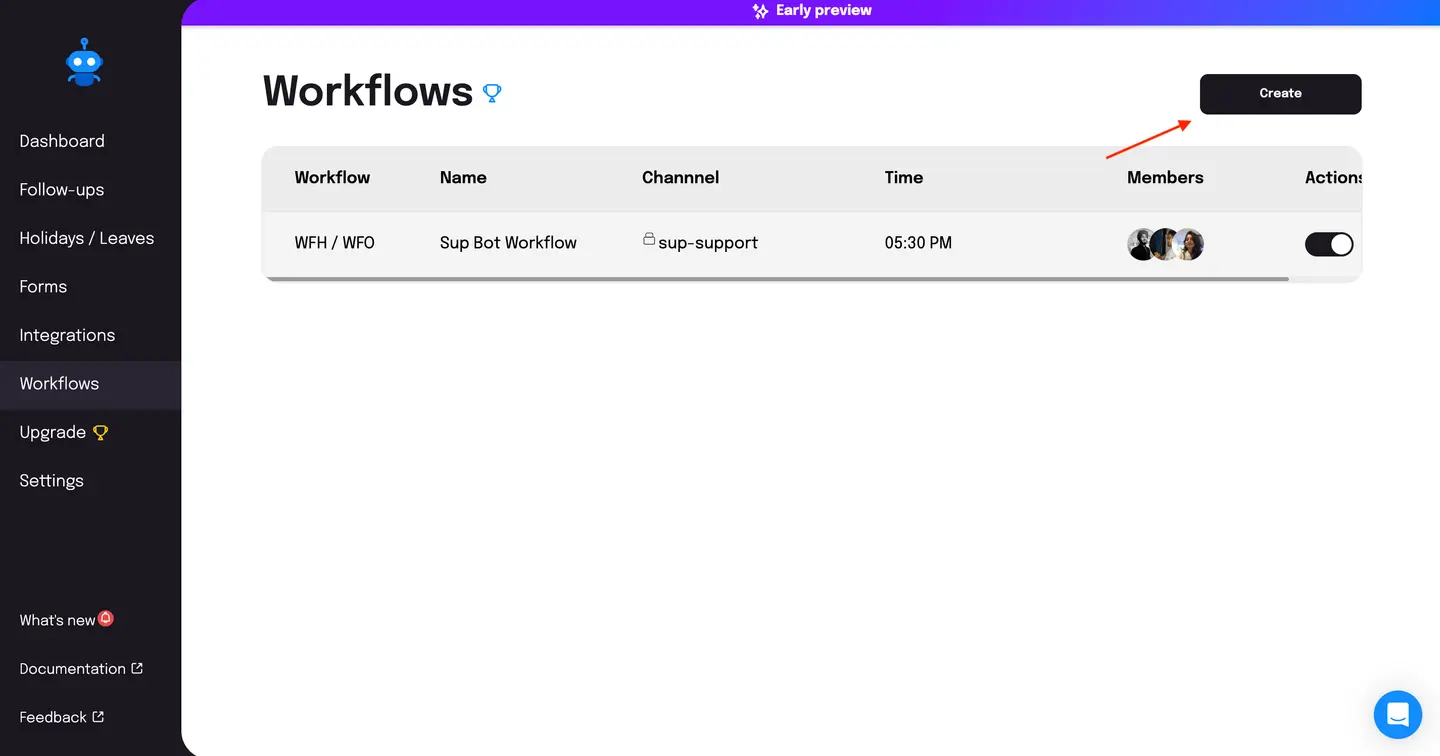
After accessing the Sup Bot dashboard at app.supbot.com, select the "Workflows" tab from the left navigation bar. Click on "Create" and choose the "WFH/WFO" workflow option. Next, add the necessary details: provide a name for the workflow, set the time at which you want the workflow to run on your workspace's working days, specify the channel where the data will be sent daily, and select the team members who should have access to this workflow. This setup ensures that the workflow is tailored to your team's needs, facilitating efficient tracking and management of work locations.
Step 3: Configure user settings
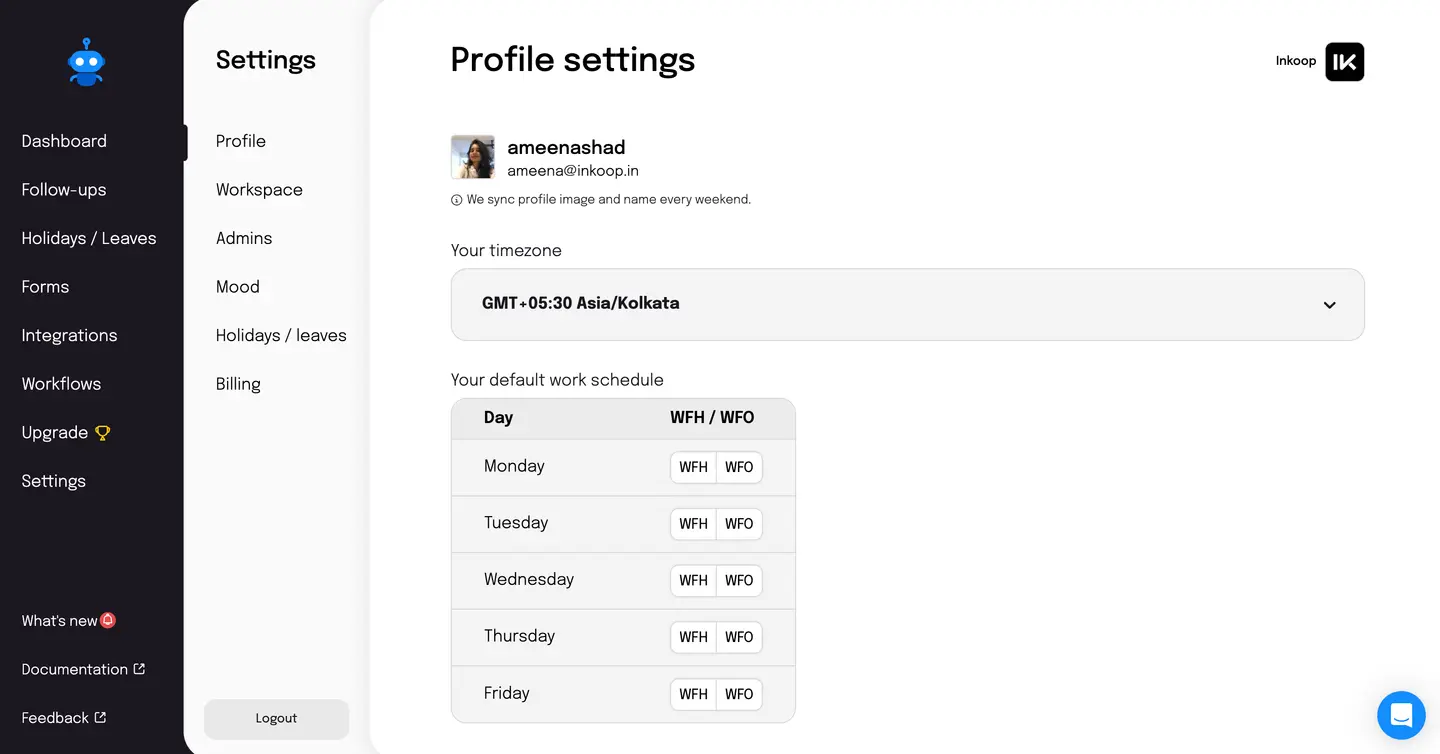
Once the workflow is created, all users will have the ability to add and edit their respective schedules. To do this, navigate to Settings -> Profile. The schedule list will include only the working days of your organization. For each working day, users can choose between two options - WFH (Working from Home) or WFO (Working from Office) - and set their preference accordingly.
Step 4: Daily updates(How it looks)
1. On Slack: Every day, at the designated time, users will receive an update in the specified Slack channel. The message will prompt them to confirm their work location for the day. If they need to make any changes, they can simply click on the "Update your WFO/WFH" button within the message. This will allow them to adjust their schedule as needed, ensuring that their work location information is always current and accurate.
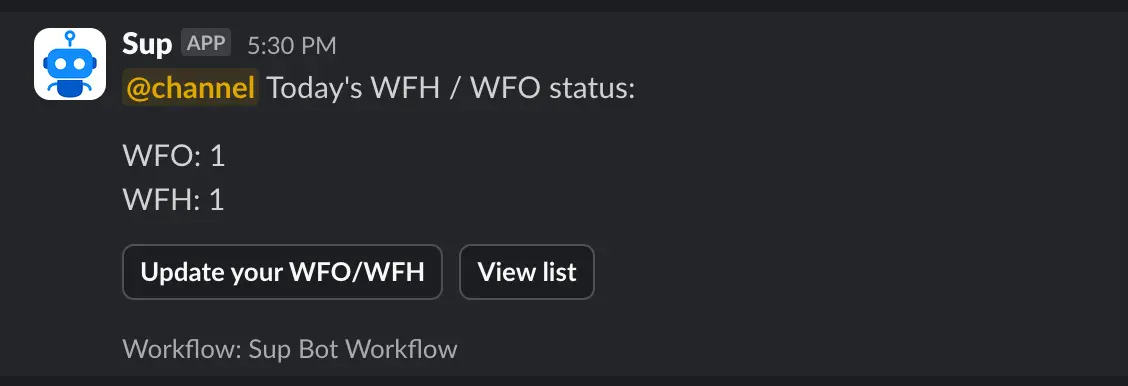
2. On Sup Bot website: It offers a comprehensive interface to manage and analyze your team's work location data:
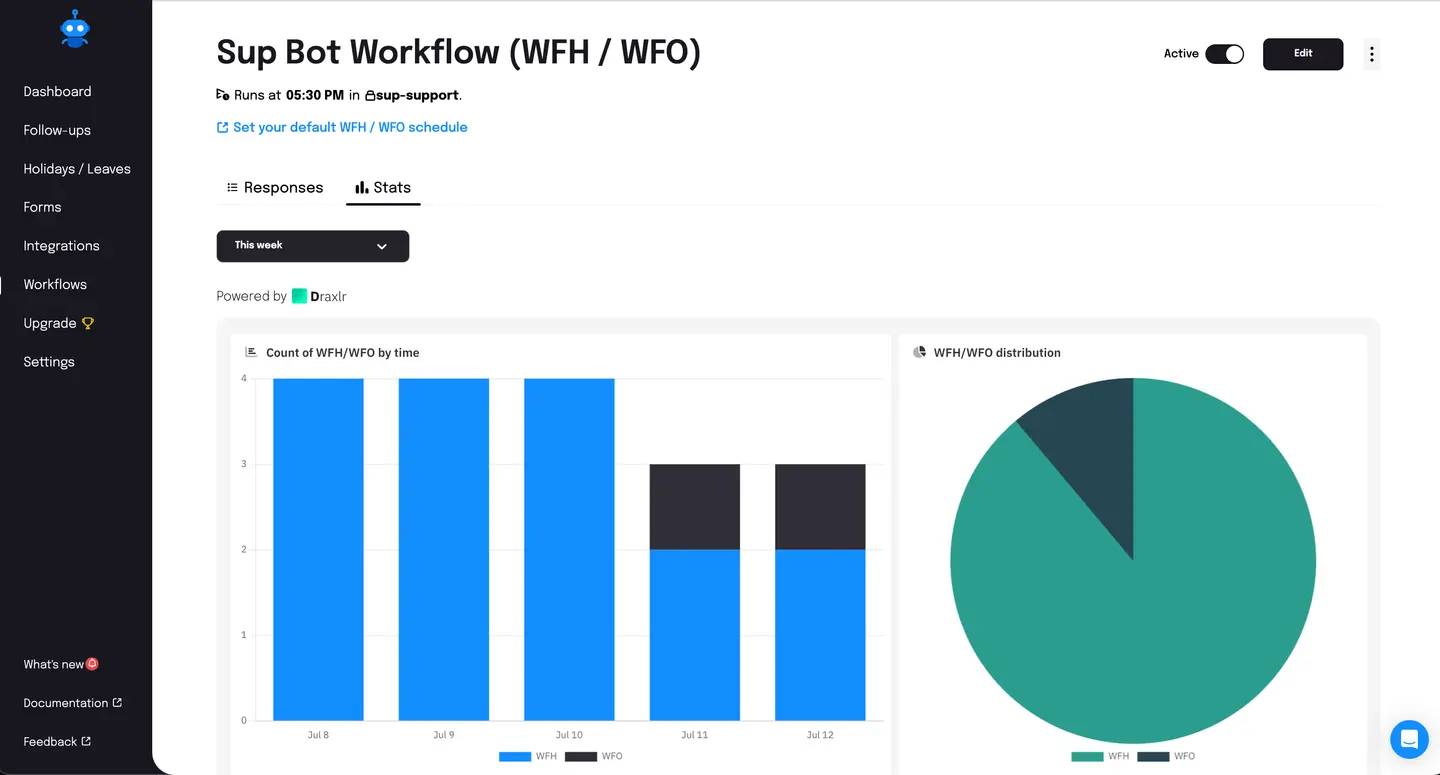
- Responses: This tab provides a clear and organized view of all responses. You can filter the data by date and by individual team members, making it easy to track specific information and monitor updates over time. This feature helps in quickly identifying who is working from home and who is in the office on any given day.
- Stats: The Stats tab offers detailed visualizations of your team's work location data. It includes:Bar Graph: This graph displays the count of WFH and WFO statuses over time, allowing you to observe trends and patterns in your team's work locations.Pie Chart: The pie chart shows the distribution of WFH and WFO statuses, providing a clear visual representation of the proportion of team members working from home versus those in the office.
Conclusion
Tracking your hybrid team’s work locations effectively is essential for maintaining productivity and seamless collaboration. While Slack workflows provide a basic solution, integrating Sup Bot offers a more comprehensive and user-friendly approach. But both Slack workflows and Sup Bot offer solutions to streamline the process. Choose the option that best suits your team's needs and get started to solve your tracking challenges, enhancing your workflow management and supporting a more transparent and efficient hybrid work environment.